Troubleshoot without losing work
This guide helps diagnose common Sambafied issues. Always preserve your work before attempting repairs.
Cannot connect or sign in
- Check the connection name, Author address and DAM root with your administrator.
- Check network access and whether the session expired.
- Retry sign-in from the affected connection and inspect the account name.
- If it still fails, retain the sanitized error and contact your support contact.
Browser sign-in does not always mean the desktop application can access assets. Never share passwords, cookies or tokens.
Certificate or proxy error
Ask your administrator to check the certificate chain and supported proxy route. Retain the error with private addresses redacted. Do not disable certificate validation or change trust settings as an improvised fix.
Asset is missing or denied
Check the connection, folder, query, filter and whether more results remain to load. Refresh and read the error. A filtered or denied asset is not necessarily deleted. Ask your administrator about permissions or expired-asset policy.
Download or upload fails
Check disk space, network and the item in Transfers. Some files can finish while others fail. Check any unknown server result before retrying. Server processing can continue after transfer completion.
Saved edits do not appear in AEM
Open Edited locally and inspect the saved copy. Saving locally differs from Upload Changes. Check completion, processing and separate check-in. A later save may remain unuploaded after an earlier copy finishes.
Linked assets are missing
Preserve the creative document. Check related downloads, permissions, application support and stable paths. Use the application's supported relink tools with care. See creative applications.
Window is blank or unresponsive
Record the version, last action and visible error. Use supported close or restart controls if available. After reopening, inspect local work and pending transfers. Preserve edits before considering reinstalling; do not delete the cache as a shortcut.
Error message reference
These messages may appear in the application window or console output.
Authentication errors
| Message | Cause | Fix |
|---|---|---|
| login declined | User cancelled the sign-in flow | Retry sign-in if you want to connect |
| default browser unavailable | Could not open the system browser | Check default browser settings |
| invalid public client | Client configuration error | Check login config file |
| file audience scopes required | Missing required OAuth scopes | Contact administrator |
| configured file root unavailable | The AEM root is not accessible | Check AEM permissions |
Connection errors
| Message | Cause | Fix |
|---|---|---|
| generation reconciliation required | Profile was created with different server state | Re-authenticate or create new profile |
| profile directory must be absolute | Invalid path specified | Use full absolute path |
| login callback port unavailable | Port 8788 is in use | Close other applications using the port |
File operation errors
| Message | Cause | Fix |
|---|---|---|
| Sambafied window preferences could not be read | Preferences file corrupted | Defaults will be used; reset preferences |
| Sambafied sort preference could not be read | Sort preference corrupted | Default sort will be used |
| Sambafied item-opening preference could not be read | Preference corrupted | Default will be used |
| Sambafied account status stopped | Background status service ended | Restart the application |
Windows-specific errors
| Message | Cause | Fix |
|---|---|---|
| WinFsp helper failed | Virtual drive mount failed | Check WinFsp is installed |
| Invalid vault credential | Stored credential corrupted | Re-authenticate |
Log locations
Logs help diagnose problems. Sambafied outputs to the terminal when run from command line.
- Console output from Command Prompt or PowerShell
- Profile data in AppData
Collect support information
Reproduce safely without exposing passwords, tokens or asset contents.
- Note the action you took and any message shown.
- Record the application version supplied with your build.
- Record connection type, time, action, expected result and actual result.
- Copy a sanitized error message (remove paths with usernames).
- Review any logs before sharing.
Exclude cookies, request headers, signed links and private asset data.
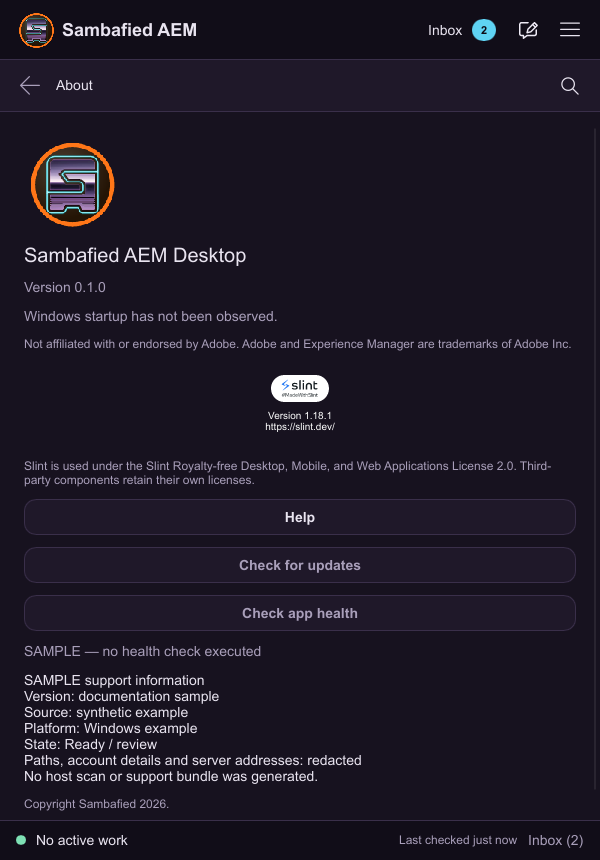
Illustrative sample. Check app health displays diagnostic information in About.