Creative applications, related assets and exported copies
Guide home · Find a task Open uses an available original and its Windows application association. Linked creative documents also need related files, supported formats and stable paths. Exact application and version support is still being checked.
Keep paths consistent across collaborators when documents depend on them. An exported copy is independent data outside the managed upload workflow. Changing an Explorer display name does not move the working files.
Use related assets and linked documents
Creative linking is still being checked for individual formats and application versions.
- Before opening or editing, inspect Include Related if available.
- Review dependencies and missing or ambiguous links.
- Use stable connected paths when placing assets in a creative document.
- Save locally, reopen to inspect links and upload reviewed changes separately.
Downloading related files does not guarantee every creative application resolves its links.
Preserve the document when links are missing. Use supported relink tools with care; do not edit binary links or guess replacement paths.
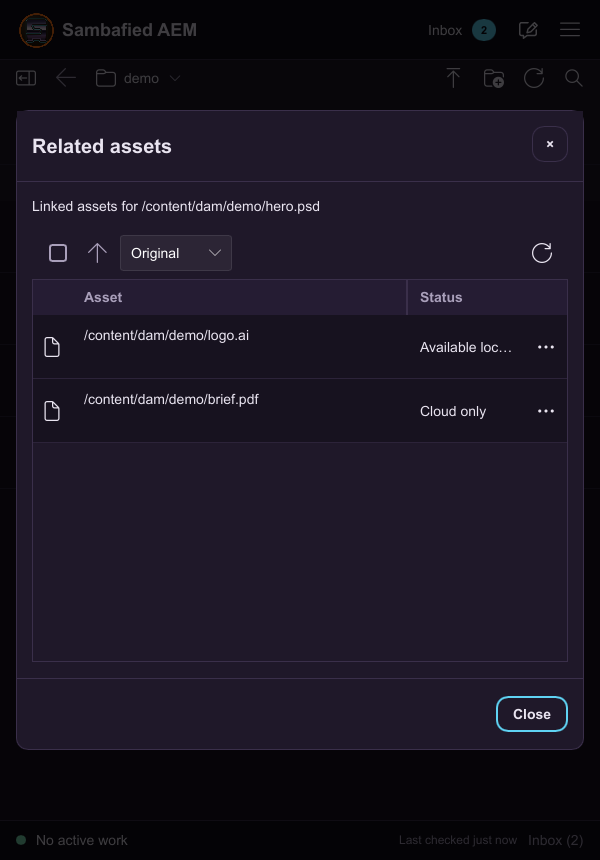
Illustrative sample. Controls may differ in your build; this image does not verify the complete task or its result.
Export or download a copy
Choose an ordinary local destination outside the managed work folder.
- Choose Export or Download a Copy.
- Review folder preservation or flattening, related files and naming conflicts.
- Confirm and inspect exported files and any partial-results list.
Exported copies are independent. Editing them does not upload changes to the managed asset.
Cancel remaining work where possible; completed copies may remain. Choose another name or destination instead of silently overwriting files.
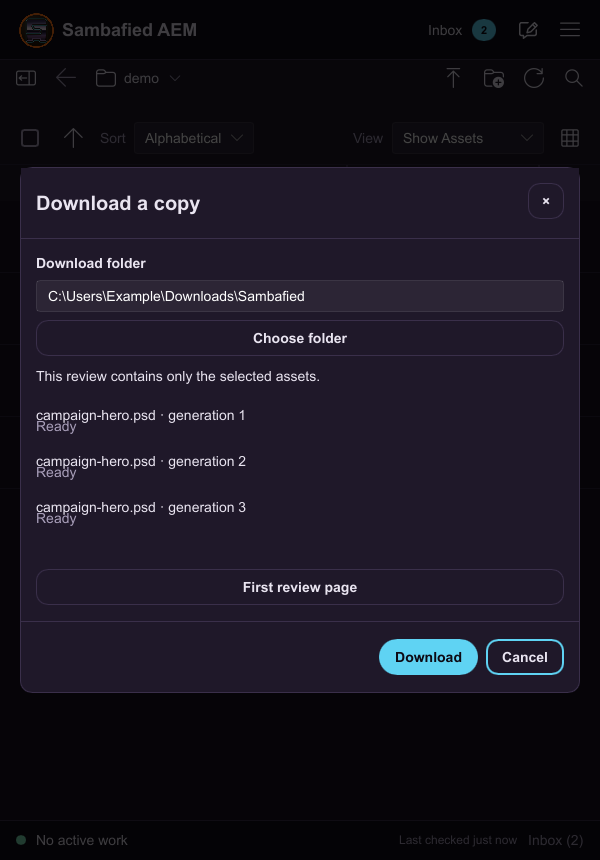
Illustrative sample. Download a copy shows the destination and files under review.