Testing with OnPrem
Allow 30–45 minutes to test the installed Windows app against a local AEM Author. These are expected results to check, not a claim that a build already passes. Use Windows Explorer and AEM's browser interface to verify both sides; a green status alone is not sufficient.
Add your License
For removal, device transfers and local file details, read Licensing.
- Install the supplied tester build and open Sambafied.
- Open About, then Manage licence.
- Enter the licence key supplied by Sambafied or your reseller and choose Activate.
- Confirm that the dialog reports a valid activation for this device. Close it and reopen licence management to check that activation was retained.
Sambafied licensing is separate from AEM sign-in. Never put the key in a test report or screenshot. If activation fails, record the visible error without the key and mark the remaining cases Blocked. If the supplied evaluation build does not expose licensing, confirm that exception with your test coordinator and record it rather than assuming activation passed.
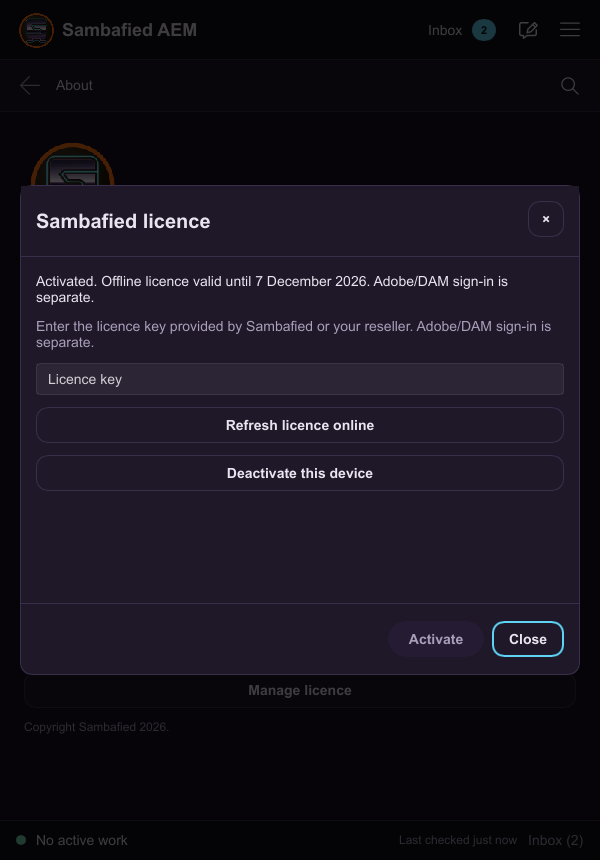
Illustrative sample. Manage licence confirms activation and shows the offline expiry.
Download the sample files
Download the sample ZIP pack (about 19 KB), or download files individually:
Extract the ZIP into an ordinary local folder before testing. For an individual
file, use your browser's Save link as if it opens a preview. Upload
sample-editable.txt through AEM's browser interface to your dedicated test DAM
folder and confirm it shows Revision: 1. Open the connected copy in Windows
Notepad, change it to Revision: 2, save and close, then verify a fresh original
downloaded from AEM. The image and PDF are also marked Revision 1. If your AEM
configuration rejects a sample file type, record that restriction as Blocked.
Prepare the test
For a standard local AEM Author running on the tester's PC, use this Author URL:
http://localhost:4502/
Use your actual Author address if the host or port differs. localhost refers
to the PC running Sambafied. HTTP is permitted only for an explicitly configured
loopback development Author; use HTTPS for normal network environments.
- Record the app build, Windows version, local Author URL and test account.
- Follow Connect to local AEM. Use a dedicated connection and work folder, with Automatic upload enabled.
- In AEM, create a dedicated DAM folder such as
desktop-test-YYYYMMDD-initials. - Use the sample image, PDF and editable text file above, or your own disposable
equivalents. Seed the editable file in AEM with revision
1. - Use disposable test assets only. Close editors before replacing assets from AEM.
- Agree a maximum wait for synchronization with the test coordinator before starting. Record elapsed time; do not wait indefinitely or treat a timeout as a pass.
Run the main scenarios
| ID | Steps | Expected result |
|---|---|---|
| OP-01 Connect | Sign in to local Author in Sambafied and select the connection's work folder. | Login remains usable until completed or cancelled. Home shows the correct account and connected folder. |
| OP-02 Browse and search | Navigate to the test folder, search for an asset and open its preview/details. | Correct assets, thumbnails and details appear. Loading finishes; failures show an understandable error. |
| OP-03 Open from Explorer | Choose Open Drive, find the revision 1 asset and open it in its normal application. | The correct original downloads and opens. Check Explorer's Status column on the mapped drive. |
| OP-04 Edit and save | Change the revision to 2, save and close the editor. Download the original through AEM's browser interface into a separate folder. | Automatic upload completes and the independently downloaded original contains revision 2. |
| OP-05 Repeated saves | Make two more edits, saving each, then close the editor. Check a fresh original downloaded from AEM. | AEM contains the final revision. Pending/upload indicators clear and an unchanged file does not continually upload. |
| OP-06 New local files | Copy the image and PDF into a new subfolder inside the connected work folder. | The folder and both assets appear in AEM. Downloaded originals open with the expected content. |
| OP-07 Changes from AEM | Upload a new asset in AEM's browser interface, then replace an existing test original there. | Both changes reach the desktop/Explorer view. Opening the updated original shows the new content. Record propagation time. |
| OP-08 Rename and move | Rename a disposable asset in Explorer, then move it between two test subfolders. Check AEM after each operation. | AEM shows the intended path with intact content and no duplicate or abandoned asset. Record any explicit unsupported-operation message. |
| OP-09 Offline recovery | Make only the tester-owned Author unavailable, or disconnect this test PC from it. Edit a previously downloaded asset and save. Restore access. | Local edits survive. Disconnection/pending work is visible, then final content reaches AEM without manually copying it again. Do not interrupt a shared Author. |
| OP-10 Restart recovery | Save another edit, quit the desktop app and reopen it. Check Home, the work folder and a fresh AEM original. | Settings and local edits survive. Synchronization resumes or has completed, and AEM contains the final content. |
| OP-11 Download a copy | Download the same asset twice into an ordinary local destination. | Both copies open correctly, have distinct filenames and preserve existing destination files. |
Additional checks
- Conflict: While offline, edit a downloaded asset locally and have a second tester replace the same original in AEM. Reconnect. Check that conflicting content is preserved and the app explains how to resolve it.
- Connection isolation: With two test connections, switch between them and edit one disposable asset. Verify that it uploads only to its owning connection.
Record results and finish
Record Pass / Fail / Blocked / Not run for each ID, including licensing. For a failure, include the build, asset path, steps, expected and actual result, elapsed sync time and a redacted screenshot. An unsupported operation is not a pass; record it for the coordinator to assess against the build's scope.
Keep failed-case files and recovery copies until the defect is investigated. Remove only your disposable test assets after results are accepted. Never delete work folders, application data or another tester's files as cleanup.
Run Testing with SaaS separately: local AEM results do not establish Cloud Service acceptance. See readiness and limits.