Sambafied AEM Desktop guide
Note: Sambafied is a development preview. See readiness and limits for current status.
This guide covers the Windows client. Connect to AEM Assets from Windows, find originals, work in local applications and review changes before uploading.
Get started
- Read availability and installation.
- Add your Sambafied licence if licensing is enabled in your build.
- Set up a connection and sign in.
- Find and preview an asset.
- Open, edit and upload changes.
Installing a supplied ZIP? Start with tester installation. For downloads and Windows-managed updates, read automatic updates.
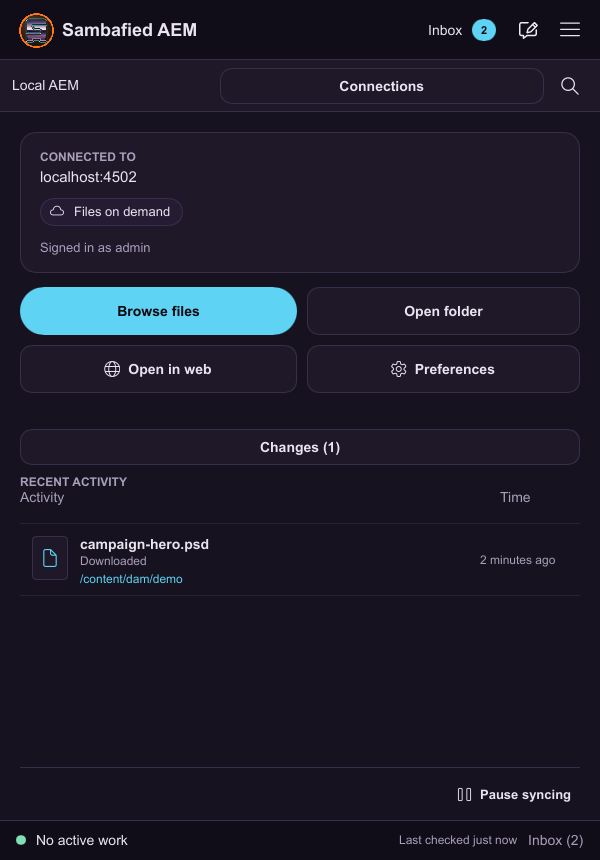
Illustrative sample. Home shows the active connection and shortcuts to your files.
Find help by task
| Task | Help |
|---|---|
| Add or remove a licence, or find its local file | Licensing |
| Add files, folders or revised assets | Uploads |
| Check progress, retry, cancel or read notifications | Transfers and Inbox |
| Prepare files for offline use | Offline work |
| Reclaim disk space | Storage |
| Preserve edits and resolve conflicts | Conflicts and recovery |
| Browse grouped assets | Collections |
| Change titles, metadata and folders | Asset organization |
| Work with linked files or independent copies | Creative applications |
| Open an asset in AEM | Web links |
| Change application and connection preferences | Preferences |
| Use Home, the window, tray or About | Desktop window |
| Understand managed work folders | Windows work folders |
| Diagnose a problem and prepare a report | Troubleshooting |
Use the complete task index, availability notes, terminology and more desktop help. If you used Adobe's desktop app, read moving to Sambafied.