Migrate from Adobe AEM desktop app
This guide helps users of Adobe Experience Manager desktop app transition to Sambafied. The two applications serve similar purposes but have different architectures, installation methods and workflows.
Before you migrate
Complete these steps before installing Sambafied:
-
Back up local work. Export or save copies of any locally edited files that have not been uploaded to AEM. Check the Adobe app's Pending Changes or Modified files view.
-
Note your connections. Record the AEM Author URLs, usernames, and DAM paths you currently use. You will need these to set up Sambafied.
-
Document linked assets. If you have InDesign, Illustrator or Photoshop documents that link to AEM assets, note the current file paths. After migration, you may need to relink these.
-
Clear the Adobe cache (optional). If disk space is a concern, use Adobe's built-in cache cleanup before uninstalling. Do not manually delete files.
-
Uninstall Adobe (optional). You can run both applications side by side during evaluation. Uninstall Adobe only after you have verified Sambafied works for your needs.
Step-by-step migration
Step 1: Install Sambafied
See getting started for build instructions. Sambafied is currently a development preview built from source; a production installer is not yet available.
Step 2: Set up your first connection
- Launch Sambafied.
- Add a new connection using your AEM Author URL.
- Sign in when prompted.
- Choose a work folder location on a local NTFS drive in Windows.
See Connections for detailed instructions.
Step 3: Verify access
- Browse to a folder you know exists in AEM.
- Open a test file to verify download works.
- Make a small edit and upload to verify write access.
Step 4: Relink creative documents
If you have InDesign, Illustrator or Photoshop files that referenced assets through Adobe's desktop app:
- Open the creative document.
- The application will report missing links (the old paths no longer exist).
- Use the application's relink feature to point to the new Sambafied work folder location.
- Save the document.
Important: Adobe's desktop app used paths like \\Server\ShareName\... on Windows. Sambafied uses a different path structure based on the Windows work folder you chose.
Step 5: Migrate additional connections
Repeat steps 2-4 for each AEM instance you previously connected to.
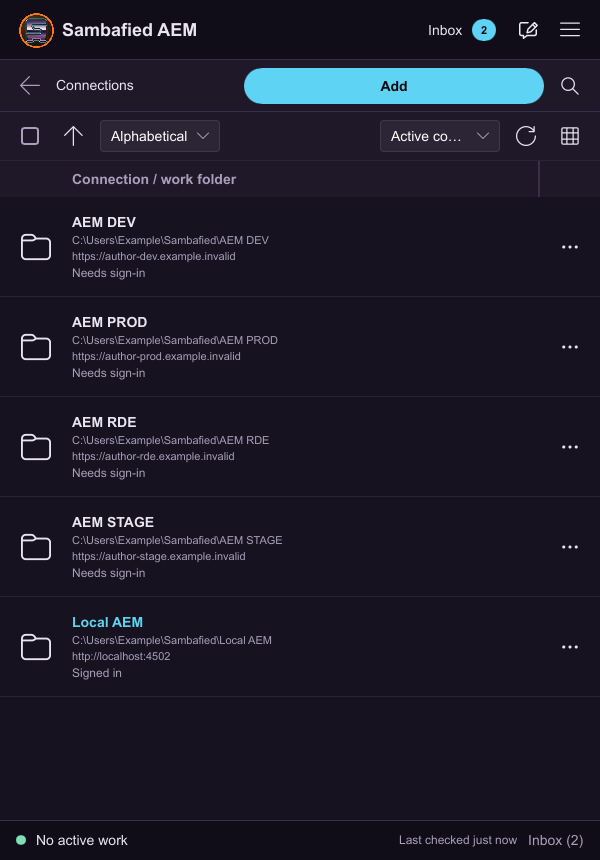
Illustrative sample. Verify the named connection and work folder after migrating.
Concept mapping
| Adobe AEM desktop app | Sambafied | Notes |
|---|---|---|
| Installation from Adobe | Application supplied by your product contact | Public customer installer coming; see installation |
| Automatic network drive mapping | Windows work folder or mapped drive letter | You choose the location |
| Single-user mode | Named connections with profiles | Supports multiple AEM instances |
| Preferences in Settings menu | Preferences in the desktop window | See settings |
| Cache folder | Work folder and local storage | See storage |
| Desktop Actions menu | Explorer context menu (Windows) | Right-click on assets |
| Upload to AEM | Upload Changes | See upload |
| Check out/in | Check out/in | Similar concept |
| Sync status icons | Status overlays | Visual indicators differ |
Key differences
Work folder location
Adobe automatically creates a folder at a fixed location. Sambafied lets you choose where to store local copies. This gives you more control but requires you to remember where you put things.
Multiple AEM instances
Adobe requires separate app instances or profile switching. Sambafied supports named connections, each with its own work folder, making it easier to work with multiple AEM environments simultaneously.
File paths
Adobe uses Windows network share paths (\\AdobeServer\...). Sambafied uses Windows work folders such as C:\users\sambafieduser\Sambafied\PROD. Creative documents that linked assets through the old paths will need relinking.
Offline support
Adobe has built-in offline caching. Sambafied's offline support is still under development. Check readiness and limits for current status.
Authentication
Adobe uses its own credential management. Sambafied uses Windows Credential Manager after browser-based sign-in.
Troubleshooting migration
Links broken after migration
This is expected. Use your creative application's relink feature to update paths.
Cannot find old files
Check the Adobe cache folder location and back up any needed files before uninstalling.
Different file types supported
Both applications work with AEM Assets, but supported file types depend on your AEM configuration, not the desktop app.
Performance differences
Performance depends on many factors: AEM server, network, file sizes and local disk speed. Evaluate with your typical workload.
Running both applications
You can run Adobe AEM desktop app and Sambafied side by side during evaluation. Use different work folder locations to avoid conflicts. Do not connect both to the same AEM folder simultaneously.