Preferences: General, Storage and Advanced
Development preview. This Windows guide describes work in progress, not a supported customer release. Follow a procedure only when its controls are available in your build. Availability depends on the server and your permissions. Saved choices and their effects on Windows or background work are separate.
General
Open window at launch defaults to On. Activation, configuration or a prerequisite can still require the window to open. Start at login is a separate, optional request: an unchecked initial control does not establish that Windows startup is Off. Check the startup result shown by your build after changing it.
Use the Window size controls to change dimensions, or Reset to restore their default dimensions. Closing the window can hide it to the tray after explanation and confirmation when the tray is available. Use explicit Quit to exit safely; closing the window is not a configurable background-mode preference or proof that transfers stopped.
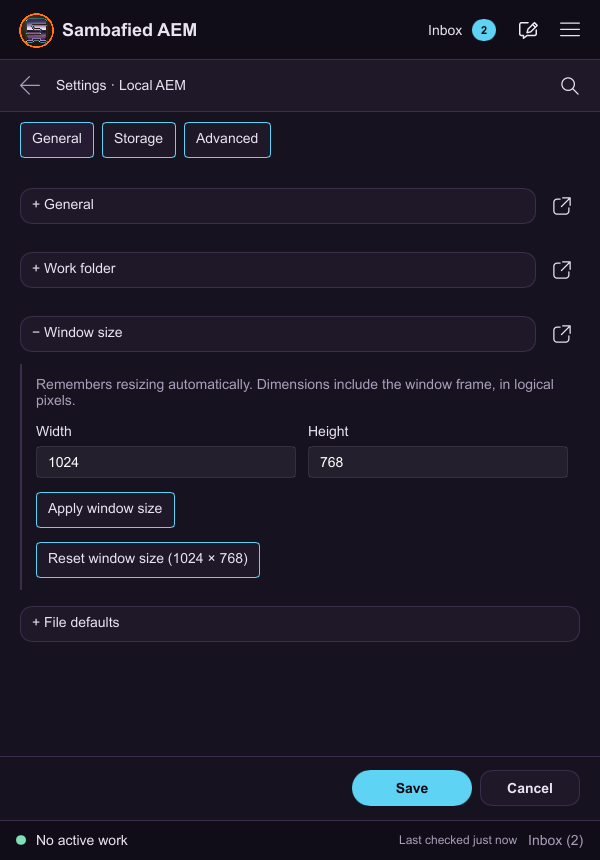
Illustrative sample. Controls may differ in your build; this image does not verify the complete task or its result.
Storage
Choose the affected connection before editing storage settings.
| Setting | Desired default | Supported range |
|---|---|---|
| Cache quota | 20 GiB | 1–1024 GiB |
| Auto clean | Off | Enable only for supported, eligible work |
| Auto clean age | 7 days | 1–365 days |
The quota has no unlimited option. Saving a quota or cleanup choice does not establish that the running storage policy changed. Inspect the available application result and usage afterward. Unknown usage is not zero. Cleanup eligibility and protection rules still apply: a quota or age limit does not authorize removing unuploaded, edited, open, pinned or uncertain work. See storage.
The cache location is managed. When a cache move is offered, use its destination review, approval and status controls. Editing a pathname in a settings file does not move cached files. Retain files and the operation details if a move fails.
File defaults and Advanced
Related-file and automatic pin-download defaults both start Off. They seed new pin reviews; changing them does not alter existing membership or consent. Export reviews start with related files unselected, so always check the choices in the operation you are about to confirm. These settings do not promise automatic downloading of every linked asset.
Temporary storage, Reveal destinations, naming, transfer capacity and network controls depend on the build. Check the affected connection and each control's available instructions. Downloads currently use a single full-file request; a multipart-upload request limit does not split a download into parallel parts.
For network settings, Direct is the default; System and Explicit policies are also represented. An explicit proxy address must use HTTPS, with no embedded credentials, query, fragment or path beyond the root. Authenticated proxy fields are not provided. Ask your administrator for a supported policy.
An optional approved enterprise CA requires its PEM file and matching lowercase, 64-character SHA-256 checksum. Use the supported certificate controls and inspect the application result. Keep certificate verification enabled; there is no TLS-disable preference.
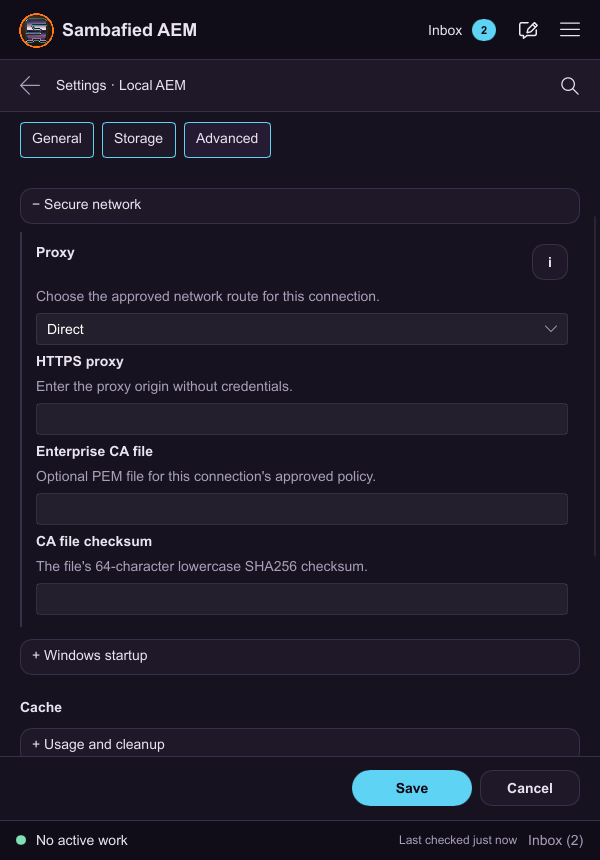
Illustrative sample. Advanced settings show the secure network controls.
Browser controls
Table/cards and sorting belong to the asset browser rather than persisted Preferences. Ordinary browsing sorts the loaded page alphabetically or by filename extension, with folders before assets. Reverse ordering applies within that page. These controls do not establish sorting of the entire DAM or saved sort order across restarts.
Search uses the configured AEM DAM scope. Available search ordering depends on the server and its index; size and modified-date ordering are not ordinary browsing modes. See browse and search.
Change preferences deliberately
- Open Settings or Preferences and confirm the selected connection where applicable.
- Use General for startup/window choices, Storage for quota/cleanup, and the available file-default or Advanced controls for connection choices.
- Change supported values and choose Save. Use Reload saved settings or Cancel draft, when offered, to abandon unsaved changes.
- Read the result for that setting. Saving records desired values; it does not by itself prove a Windows startup change, cache move or running network/storage change. Follow only the application or status instructions actually offered for that setting.
There is no universal Apply, reconnect or restart procedure that proves every setting took effect. Keep the previous working values and operation details if application fails; ask for help with the specific result.
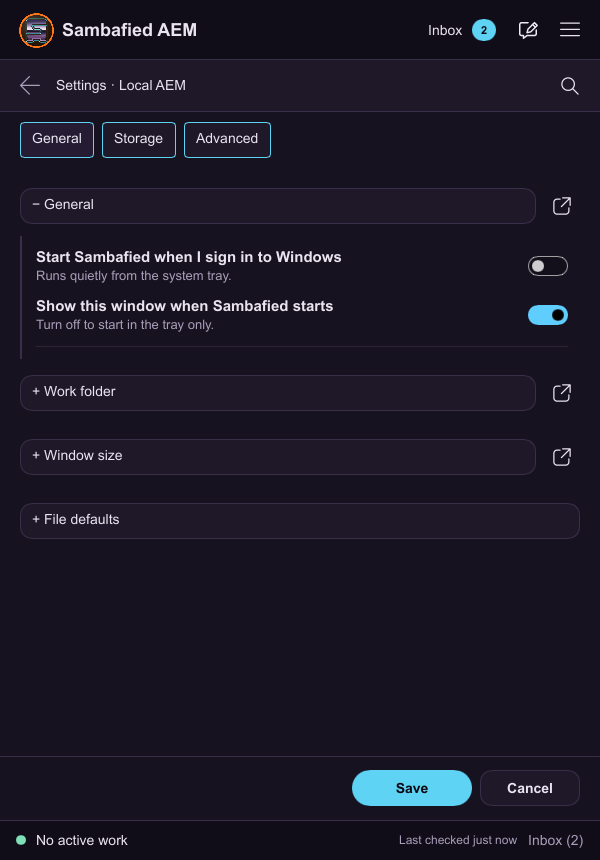
Illustrative sample. Controls may differ in your build; this image does not verify the complete task or its result.
Keep configuration and sign-ins intact
The normal Windows connection catalog is .sambafied/config.json beneath the profile directory selected by Windows. Existing saved choices take precedence over fresh defaults. Some older configurations can be imported from a legacy location; do not move or rewrite files to force an import.
To change a preference, edit it in the app and save it. Use Window size Reset for default dimensions. Do not delete the catalog, profile/state directories or local work as a reset procedure. They contain connection and recovery information beyond Preferences.
For one sign-in, use a connection-specific reset or repair review only when offered, and read the affected account and outcome. Do not clear unrelated browser profiles or sign-ins. Exact installed reset procedures remain in development.