Add, manage and remove your licence
Your Sambafied licence enables the desktop app on your device. Obtain your licence key from Sambafied or your reseller. It is separate from your Adobe or DAM account: activating Sambafied does not sign you into AEM.
These instructions apply to builds with licensing enabled. Some evaluation builds report that licensing is not enabled. Sambafied remains a development preview; use the installation and known-issue notes supplied with your build.
Who owns the licence?
| Licence type | Ownership and coverage |
|---|---|
| Personal Licence | Tied to one named person. It belongs to that individual and is for their use, rather than a shared licence for staff. |
| Corporate Licence | Belongs to the licensed company and covers all its staff. Staff covered by that corporate licence do not need individual personal licences. |
See pricing for personal pricing and corporate licence enquiries through a Sambafied partner.
Licence ownership and device activation are different. Activation enables a PC for use under the licence; deactivating a PC does not change who owns the licence.
Add your licence
Connect to the internet before activating.
- Open Sambafied and choose About from the application menu.
- Select Manage licence.
- Paste your key into Licence key, then select Activate.
- Wait for the status to confirm activation. It also shows the offline licence expiry. Select Close when finished.
If activation fails, check the key, your internet connection and the error message before retrying. If your device allowance is full, deactivate a device you no longer use or contact your licence provider. Keep your key private; do not include it in screenshots or support reports.
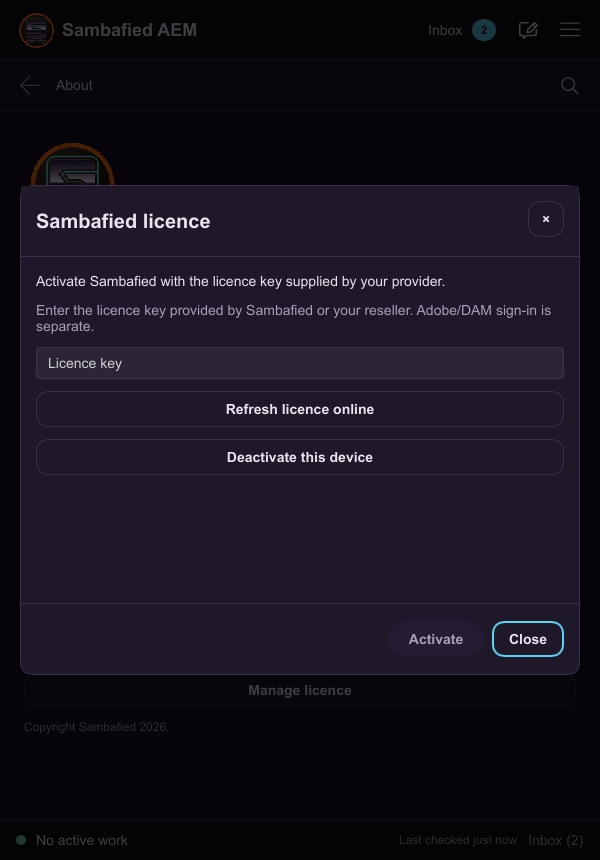
Illustrative sample. The activation form has an empty Licence key field and an Activate button.
Check or refresh your licence
Open About > Manage licence to read the current status. Select Refresh licence online while connected to the internet to obtain an updated authorisation.
An activated device can continue offline only until the expiry shown in the app. A licence may have a shorter term than the app's maximum offline period. Reconnect and refresh before it expires. An online refusal, expiry or invalid local licence may require activation or help from your licence provider.
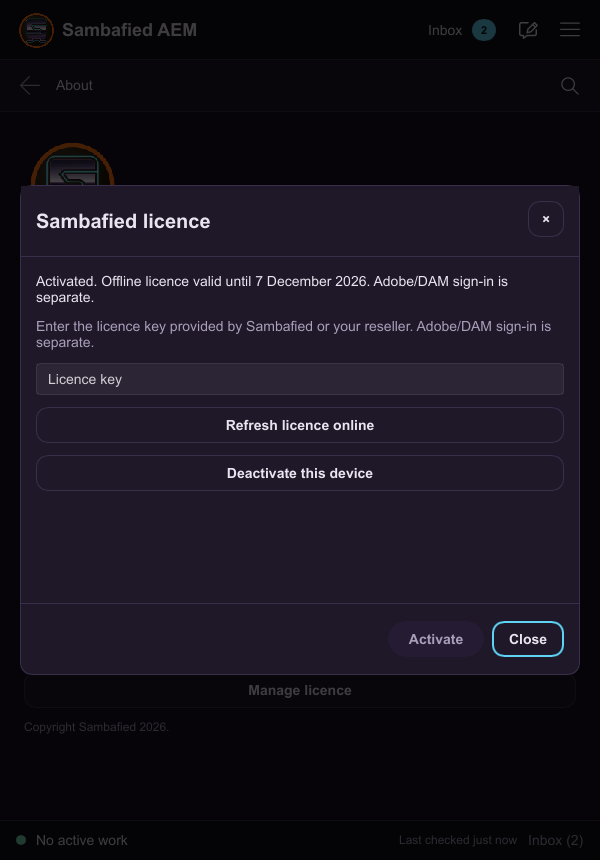
Illustrative sample. Manage licence shows activation status and the refresh action.
Remove the licence from this device
Deactivation releases this device's activation and removes its saved local licence. It does not cancel your licence agreement or delete DAM files, local edits, recovery copies or application settings.
- Finish or safely preserve pending work and connect to the internet.
- Open About > Manage licence.
- Select Deactivate this device.
- Select Confirm deactivation to confirm your choice.
- Wait for the message confirming that this device is deactivated.
If deactivation fails, the local licence is retained so you can retry. Check connectivity and try again; contact your licence provider if it still fails. Closing the dialog before confirmation does not deactivate the device.
For a personal licence, the named person remains the same when moving between PCs. To move to another PC, deactivate on the old PC first, then use the same key to activate on the new PC, subject to your licence's device allowance. If the old PC is unavailable, ask your licence provider to release its activation.
What happens when you uninstall?
Preserve local edits and recovery data, follow the supported connection removal instructions, and quit Sambafied normally before uninstalling. If a managed work folder cannot be disconnected safely, stop and ask for help rather than deleting its files.
| Installation type | Licence action |
|---|---|
| Full MSIX package, including a tester MSIX | Deactivate in the app before uninstalling. Windows package removal does not contact the licensing service to release the device. |
| License-aware Setup.exe installer | Uninstall automatically deactivates the device and removes its local licence before removing the app. An internet connection is required when an activation is saved. |
| Older or other supplied build | Follow its accompanying instructions; do not assume automatic deactivation is included. |
The license-aware Setup.exe stops uninstall if licence cleanup fails, a Sambafied process is still running, or a managed sync folder remains registered. Resolve the reported problem and retry. It preserves user files and settings. These installer behaviours are part of the current preview; complete installed testing is ongoing.
Where is the licence stored on Windows?
The app uses this location for the current Windows user:
%LOCALAPPDATA%\Sambafied\Licensing\[licence-scope]\licence.dpapi
To inspect the folder, press Windows + R, enter
%LOCALAPPDATA%\Sambafied\Licensing, and press Enter. The folder is created
when a licence is saved. The long folder name under Licensing identifies the
licensing configuration; it is not your licence key. For a typical profile,
%LOCALAPPDATA% means C:\Users\YourName\AppData\Local.
A full MSIX installation can use Windows-managed redirected app storage under
%LOCALAPPDATA%\Packages\[package-family-name]\LocalCache. If you cannot find
the folder at the app's normal path, ask support to identify the location for
your installed package. Windows describes this in its
MSIX storage guidance.
The licence.dpapi file holds the protected activation information, including
the saved key and signed offline authorisation. Windows encrypts it for the
current Windows user. It is separate from your DAM assets and settings; copying
it is not a supported way to transfer a licence to another user or PC.
Use the app to deactivate. Deleting the file or uninstalling an MSIX does not by itself release the remote device activation. Do not edit or delete the Licensing folder as a reset procedure. If the file is unreadable or corrupted, keep it in place and contact your licence provider for recovery instructions.