Find, preview and select assets
Guide home · Find a task Use My assets to browse the selected connection. Home describes that connection. Search may cover the repository or only the current screen; check the scope before treating results as complete.
Keyboard use
Use Tab to reach named controls and inspect the visible focus indicator. Enter or Space activates the Home title where supported. Detailed screen-reader and keyboard sequences are still being checked. Report controls that cannot be reached in your build.
Browse folders and change views
Connect to a DAM folder you can read.
- Open My assets.
- Follow the folder tree or path navigation.
- Choose an available list, grid or card view.
- Use Back to revisit a location and Refresh to update its contents. Check whether more results remain to load.
The current connection and folder show where you are browsing.
An empty view may mean an empty folder, a filter, incomplete loading or denied access. Read the message before assuming assets were deleted.
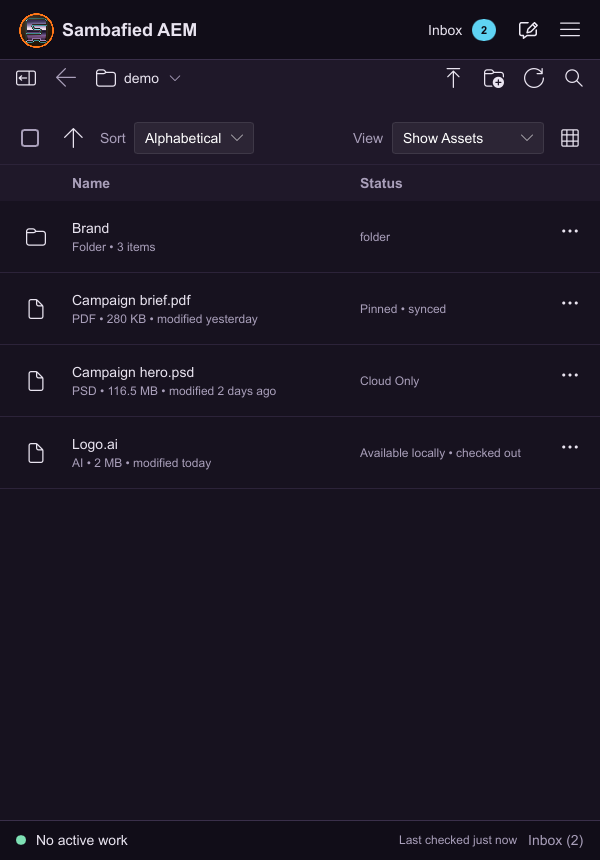
Illustrative sample. Controls may differ in your build; this image does not verify the complete task or its result.
Search and sort
Search options vary by server. Exact metadata fields and wildcard examples are still being prepared.
- Open search in My assets and enter a name, title or supported metadata query.
- Check whether the search covers the repository or only the current screen.
- Choose an available sort field and direction.
- Clear the query to return to browsing.
Read the result count and any loading limit before treating the list as complete.
If search fails, keep the query and retry. A local screen filter does not search the whole repository.
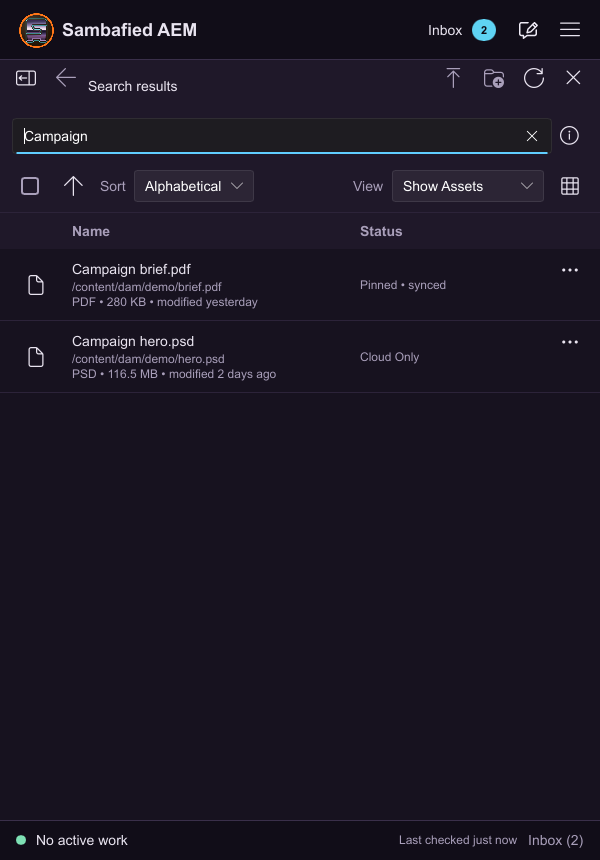
Illustrative sample. Controls may differ in your build; this image does not verify the complete task or its result.
Select and act on multiple assets
Check which rows are loaded and which actions are available.
- Select the assets using their selection controls.
- Check the selected count and the available common actions.
- Use Select All for the loaded rows. If an action offers all search results, inspect its separate review and complete count.
- Confirm the reviewed selection or cancel.
A mixed selection may offer fewer actions than a single asset.
Clear the selection to start again. If an action is unavailable, inspect individual status or select fewer items.
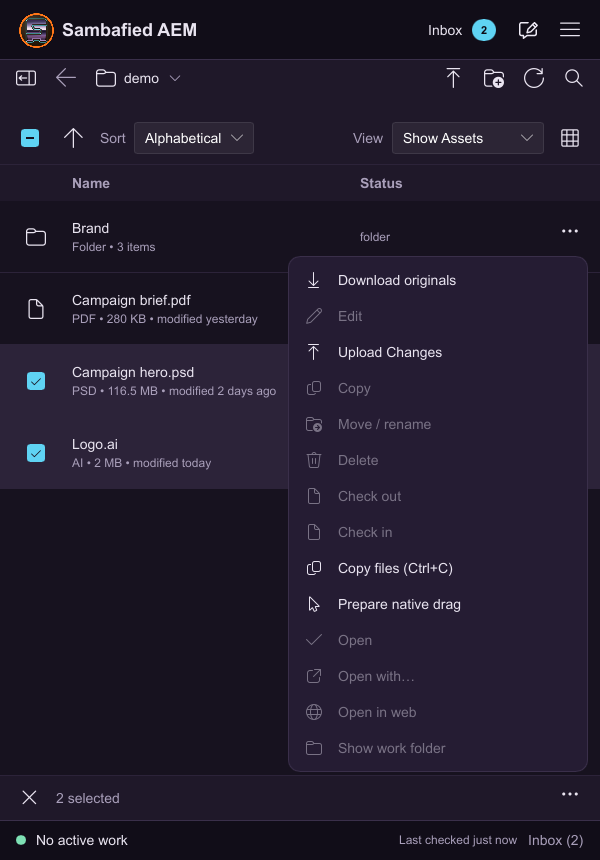
Illustrative sample. Controls may differ in your build; this image does not verify the complete task or its result.
Preview an asset
Select a readable asset.
- Open its details or preview.
- Inspect the title, file type, size and available metadata.
- Download the original when you need the full file.
A thumbnail does not mean the original has downloaded. Preview and playback formats depend on the build.
If a preview is missing, inspect metadata and retry. Read any original-download error separately.
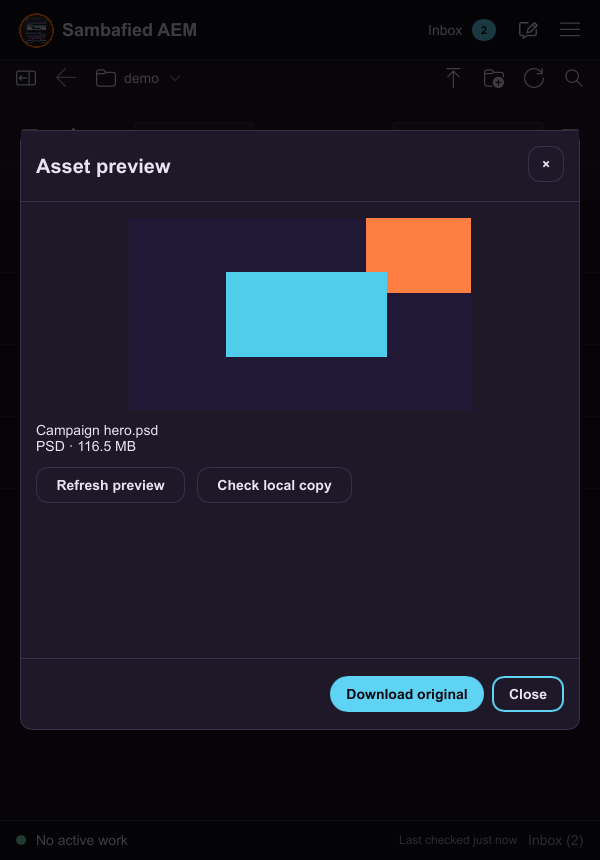
Illustrative sample. Controls may differ in your build; this image does not verify the complete task or its result.