Connections, sign-in and sessions
Guide home · Find a task Use Connections to check the server and account before acting. Give each connection a recognizable name. Ask your administrator for the correct Author address and DAM root; do not publish private environment addresses in screenshots or support reports.
Sign-in methods depend on the server and build. Remembering the server address differs from remembering sign-in. If a session expires, sign in explicitly for that connection and check the account before resuming pending work.
Manage named connections
Have the Author server address, deployment type and DAM root supplied by your administrator.
- Open Connections and choose the add connection action.
- Enter a distinct name, deployment type, Author address and DAM root.
- Connect, then check the displayed account and server.
- Edit the Explorer display name if needed. Before removing a connection, inspect its pending work.
Each connection keeps its own account and work folder. Renaming a display label does not move files. See the PROD, STAGE and DEV folder examples when planning separate environments.
Cancel setup to leave it unfinished. Keep local edits and recovery files if removal reports pending work.
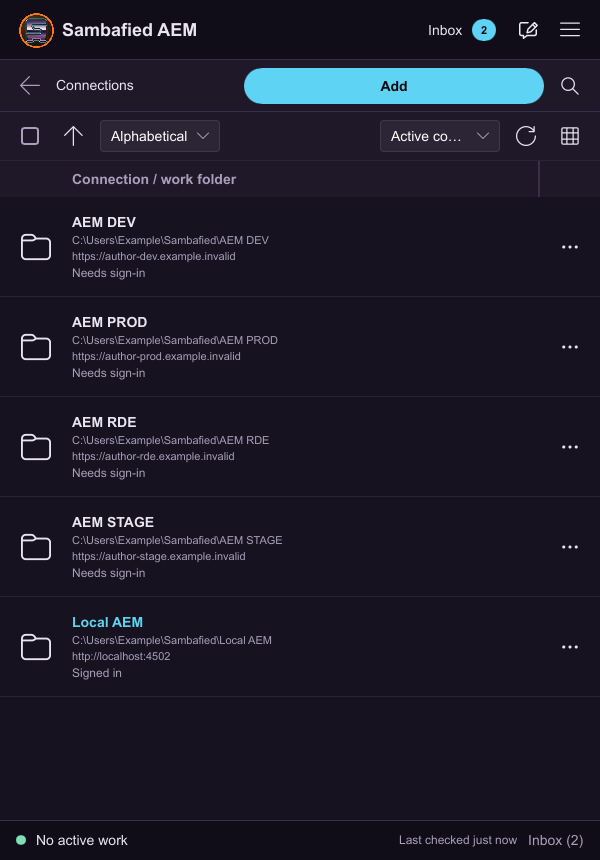
Illustrative sample. Connections lists named setups and sign-in status.
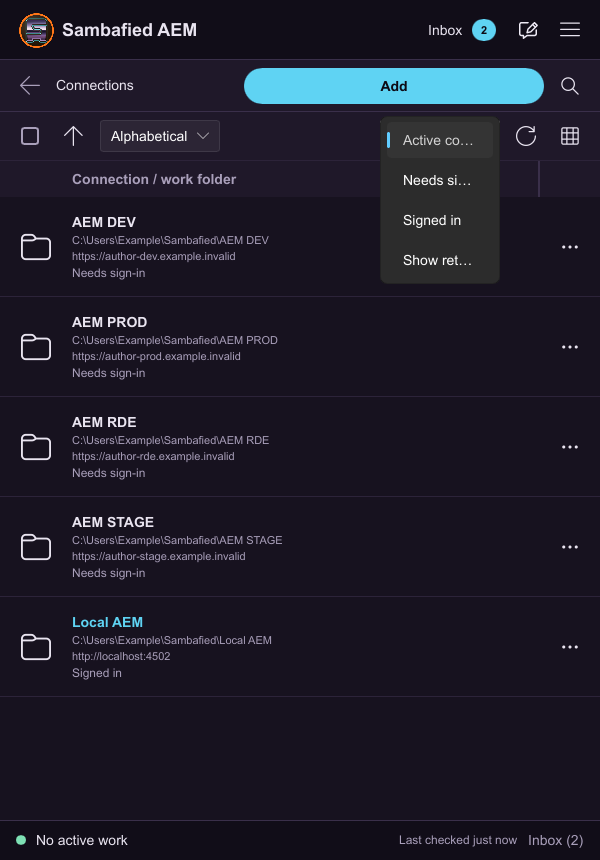
Illustrative sample. The Connections filter includes active, signed-in and retained setups.
Sign in and remember a session
The supported sign-in method depends on the server and build.
- Select the connection and review its sign-in method.
- Before starting sign-in, choose Remember sign-in if offered and if you want this connection to retain its sign-in securely on this PC. This option is unavailable for the Native sign-in profile.
- Choose Sign in and complete the page or browser prompt presented by the app.
- Check the account name after connecting.
Remembering the server address and remembering sign-in are separate choices.
Cancel while sign-in is pending to abandon the attempt. If access is denied or the browser cannot return to the app, retry from that connection or ask your administrator. Never share sign-in tokens.
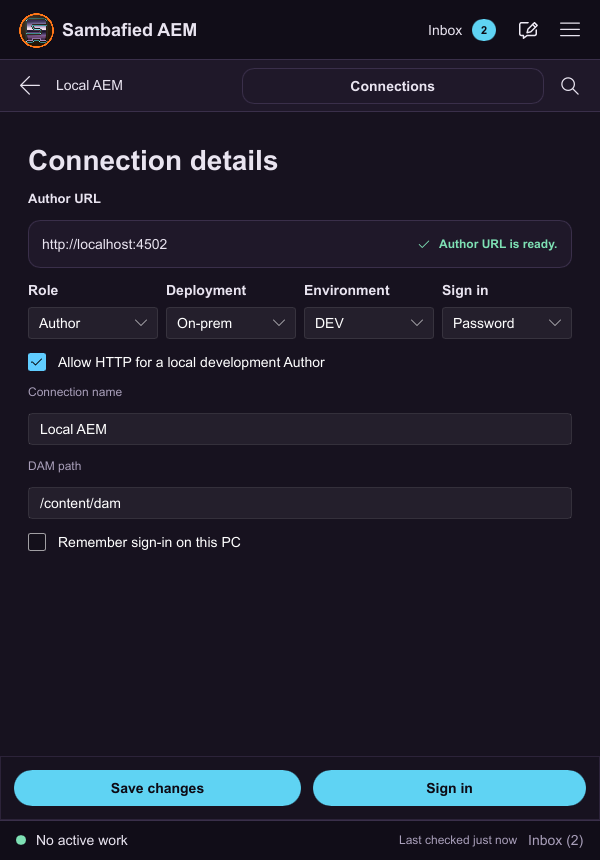
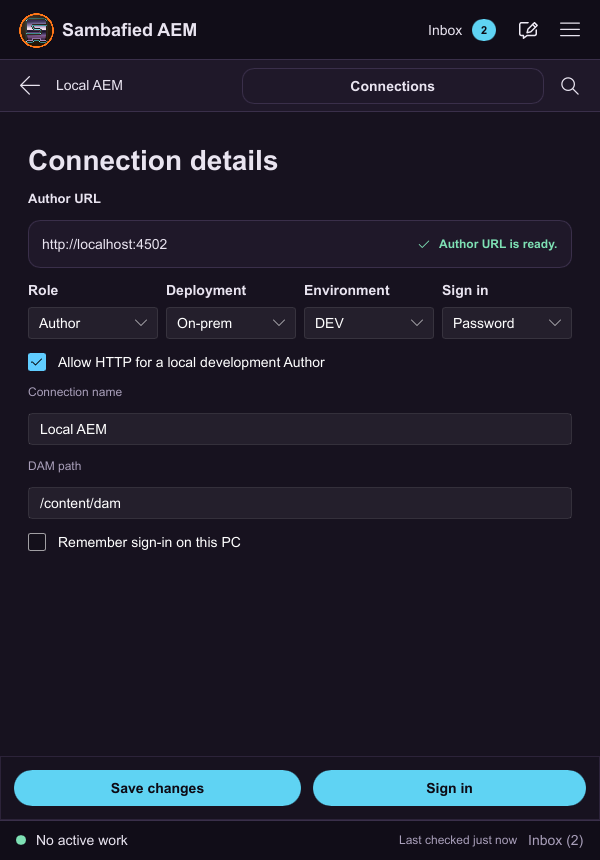
Illustrative sample. The local Author form offers password sign-in and Remember sign-in on this PC.
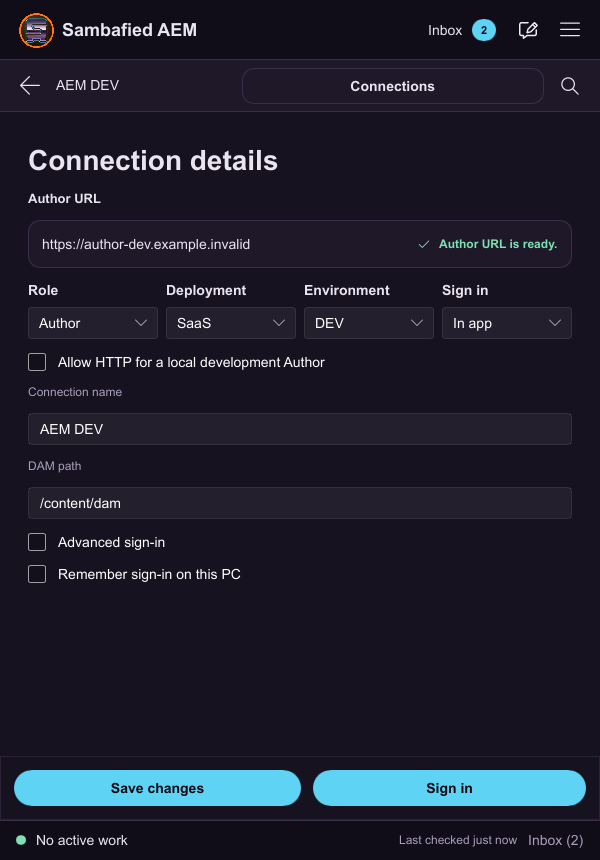
Illustrative sample. The Cloud AEM connection uses the SaaS deployment setting.
Reconnect, expire, sign out and switch accounts
Check which account owns local edits and pending transfers.
- Open Sign in again when the connection asks you to reconnect.
- Confirm the original account before resuming pending work.
- To sign out, choose Log out for that connection.
- To switch accounts, finish signing out, sign in again and check the new account before starting work.
Local edits should survive session expiry and sign-out. Pending work belongs to the account that started it.
If a different account appears, leave older pending work untouched and ask support for help. After restart, inspect Transfers before retrying an unknown result.
Illustrative sample. A signed-out connection shows how to return to sign-in.