Automatic updates
Downloads and release notes: updates.sambafied.me.
Public channel releases are not available yet. If you received a tester ZIP, follow tester installation; those packages are updated manually.
Install with an update channel
When a signed release is available, open
Sambafied downloads and choose its installation
link. Open the downloaded .appinstaller file with
Microsoft App Installer.
Installing through this file registers the channel used for future updates.
Beta contains preview releases for testing. Stable is intended for everyday use once available. Changing channels is an explicit installation from the downloads page; a lower version cannot replace a higher installed version.
How updates work
For channel installations, Windows App Installer manages downloads, signature verification and installation. The Sambafied channel settings request update checks when the app launches and in the background. Your organisation's Windows policies can affect this behaviour.
Updates can wait while Sambafied or its background Agent is running. Save work, let transfers finish and quit Sambafied from the tray when you are ready to update. Keep local assets, saved connections and recovery data in place.
Check for updates
In builds with About → Check for updates, use that action to open Windows App Installer for your installed channel. A development build or a package installed without a channel may open the downloads page instead.
If an update fails, keep your existing installation and local data. Note the installed version and Windows error, then contact the person who supplied the build. Do not uninstall or delete caches as an update shortcut.
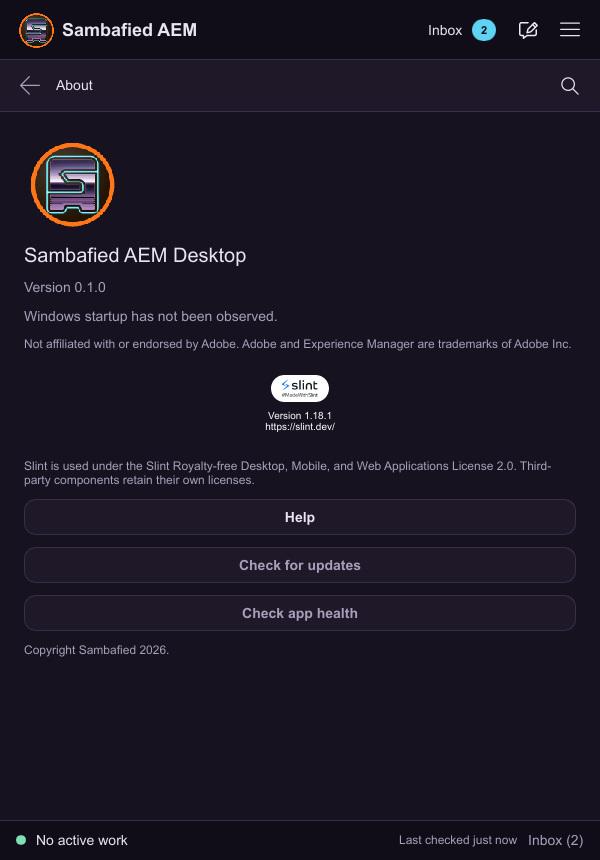
Illustrative sample. Open About to check the installed app version and available controls.