More desktop help
These notes cover additional preview preferences and recovery situations. Supported customer installation and compatibility details remain in development. A listed topic does not mean the feature is available in every build.
| Topic | What to do | More help |
|---|---|---|
| Work-folder location | Keep the existing folder unless supported migration instructions tell you to move it. New-folder suggestions are still being finalized. | Read more |
| Private application data | Keep configuration, saved sign-ins and operation history separate from working files. Preserve any explicitly chosen paths. | Read more |
| Missing work folder | Keep the original connection records and use a supported recovery review. Do not recreate a managed folder by guessing. | Read more |
| Missing-folder notifications | Read the Inbox warning for a missing or recreated folder. Dismissing it does not repair the folder. | Read more |
| Recover an existing folder | Check the original account, connection and retained folder before accepting recovery. | Read more |
| Rebuild connection records | Record reconstruction is still being validated. Keep recovered work paused until the original account and folder have been confirmed. | Read more |
| Remove an obsolete Explorer entry | A supported removal procedure is still being prepared. Ask support to check ownership and pending work first. | Read more |
| Repair application records | Preserve existing folders, pending operations and newer records. Do not replace current data with an older catalog manually. | Read more |
| Move to a new folder layout | Migration is planned. Leave existing paths intact until supported instructions are supplied. | Read more |
| Change application package | Package transitions must preserve accounts, folders, history and saved sign-ins. Exact customer instructions are pending. | Read more |
| Reinstall or roll back | Installation, reinstall and rollback procedures are still being prepared. Retain local edits before changing the installation. | Read more |
| Start the current application at logon | Enable startup only if offered by your build, then check the result after signing into Windows. | Read more |
| Choose an optional drive letter | No drive letter is a valid choice. Do not reuse an existing mapping. Saving a preference does not create a mapping. | Read more |
| Choose automatic cleanup age | Review the modified-date age and exclusions for edited, open and pinned files before enabling cleanup. | Read more |
| Use separate connections | Keep each server, account, work folder and pending operation with its named connection. | Read more |
| Recognize the taskbar icon | Use About to confirm the application build when the icon is unclear. Final installed artwork is still being checked. | Read more |
| Navigate while signed out | Use Home to reach Sign in or Connections before opening server assets. | Read more |
| Read connection rows | Read each row against its column headings and check the full name, account and active status. | Read more |
| Read Inbox rows | Use the column headings to identify a message before opening its details. | Read more |
| Open message details | Select one Inbox message to inspect its detail area and related action. | Read more |
| Keep track of the selected message | After scrolling or refreshing, check the highlighted message before acting. Selection and keyboard behavior are still being checked. | Read more |
| Check when status was updated | Read Last updated in Operations to distinguish a recent observation from retained history. | Read more |
| Read recovery messages | Inspect the whole message, including wrapped text. A recovery request differs from a sign-in request. | Read more |
| Sign in beside the server address | Check the Author address before using the nearby Sign in action. It must refer to the intended connection. | Read more |
| Use Back and Home | Back revisits previous locations and searches; the brand image and title return Home. | Read more |
| Recognize installed application entries | Use the application name and publisher in Windows Installed Apps or Start. Final installer artwork is still being checked. | Read more |
| Remember the window size | Use width, height and reset controls when available. The planned default is 600 by 860 logical pixels; installed behavior is still being checked. | Read more |
| Remember a sign-in | Choose this separately for each connection. Remembering the server address alone does not retain sign-in. | Read more |
| Choose a distinct work folder | Review folder suggestions derived from the connection or server name. Avoid collisions and preserve any explicit existing path. | Read more |
| Understand an unavailable work folder | Read the cause shown by the connection. A Connecting label does not establish that the folder is ready. | Read more |
| Keep retained Explorer entries | After startup while signed out, inspect retained entries without removing or re-registering them manually. Startup recovery remains under development. | Read more |
| Handle a sign-in page or access error | Use the sign-in method supplied for the deployment. An access-denied response is not a successful sign-in; advanced login addresses need administrator instructions. | Read more |
| Use a narrow window | Scroll to reach remaining menu entries. Keep Operations and any Quit review accessible; report overlapping or unreachable controls. | Read more |
| Launch at logon | Opt in only when wanted and check whether the application actually starts at the next Windows sign-in. | Read more |
| Show the window at startup | This preference is separate from launching the application at Windows sign-in. | Read more |
| Set window dimensions | Change width and height or use reset where offered. Check the result after restart; display fitting remains under development. | Read more |
| Enable automatic cleaning | Use the age-based option only after reviewing which local files remain protected. | Read more |
| Inspect cache quota and usage | Quota, measured usage and a deliberate safe-clear action have different effects. An unknown measurement is not zero usage. | Read more |
| Relocate the cache | Use only the supported relocation review. Check the destination, stopped transfers and successful copy before changing locations; keep the source until recovery is confirmed. | Read more |
| Choose an export destination | Inspect the actual destination before each export. Saved defaults may still need applying. | Read more |
| Choose temporary storage | A saved temporary directory may not have taken effect. Do not move active staging files manually. | Read more |
| Set related-file and pin defaults | Inspect these options again on each new download or upload review. A preference does not change an already accepted operation. | Read more |
| Set the Reveal destination | Distinguish the work folder, selected asset, managed cache and exported copy. | Read more |
| Choose naming rules | Review resulting names and collisions before uploading. Adobe naming conventions do not automatically apply. | Read more |
| Limit simultaneous transfers | Review available file and part limits. Follow Apply or reconnect instructions; Adobe slider values do not configure Sambafied. | Read more |
| Configure proxy and certificates | Ask your administrator for supported network setup. Keep certificate verification enabled. | Read more |
| Configure browser sign-in | Application registration and return addresses require supported administrator setup. Do not copy credentials from another connection. | Read more |
| Reset one saved sign-in | Use the affected connection reset or repair review if offered. Do not delete all browser cookies or profiles. | Read more |
| Restore a drive preference | A saved letter is a preference, not proof of an existing mapping. Do not take over a drive owned by another setup. | Read more |
| Check server access | Successful browser sign-in does not guarantee the desktop application can access assets. Confirm the account and readable DAM root. | Read more |
| Keep accounts separate | Sign out and reconnect through the intended connection. Never share saved credentials or resume another account's pending work. | Read more |
| Check supported actions | Server type and version affect available actions. Use only actions offered by the build; supported customer combinations are still being prepared. | Read more |
| Avoid overwriting newer work | Compare local and server changes before replacement. Preserve a copy if the current server result is unknown. | Read more |
| Check Windows integration support | Windows work folders and Explorer behavior still need version-specific validation. Do not assume another operating system is supported. | Read more |
| Protect retained data | Keep edits and recovery files through faults, repairs and updates. Stop if space or recovery status is uncertain. | Read more |
| Check creative application support | A related-file list does not guarantee every application resolves links. Confirm the document opens and displays correctly. | Read more |
| Check release availability | Supported customer packages and server combinations have not been announced in this guide. Obtain evaluation instructions from the responsible contact. | Read more |
| Check an installation package | Confirm publisher, version and supplied prerequisites. A development executable is not a supported signed release. | Read more |
| Plan installation and recovery | Exact clean-install, update, uninstall and recovery instructions remain pending. Preserve local work first. | Read more |
| Check accessible controls | Use visible focus and named controls. Detailed installed accessibility, tray and shutdown behavior is still being checked. | Read more |
| Plan disk and network capacity | Check available space and connection quality before large batches. No throughput or resource-use guarantee is established by this preview. | Read more |
Version history
A complete desktop version-history timeline is planned. Upload labels and comments do not imply a timeline is available. Use an approved AEM web history page if your deployment provides one. See uploads and versions.
Free up space
Windows Free up space differs from managed cache clear. Review the eligible originals and protected files before confirming. Exact Windows behavior is still being checked; see storage.
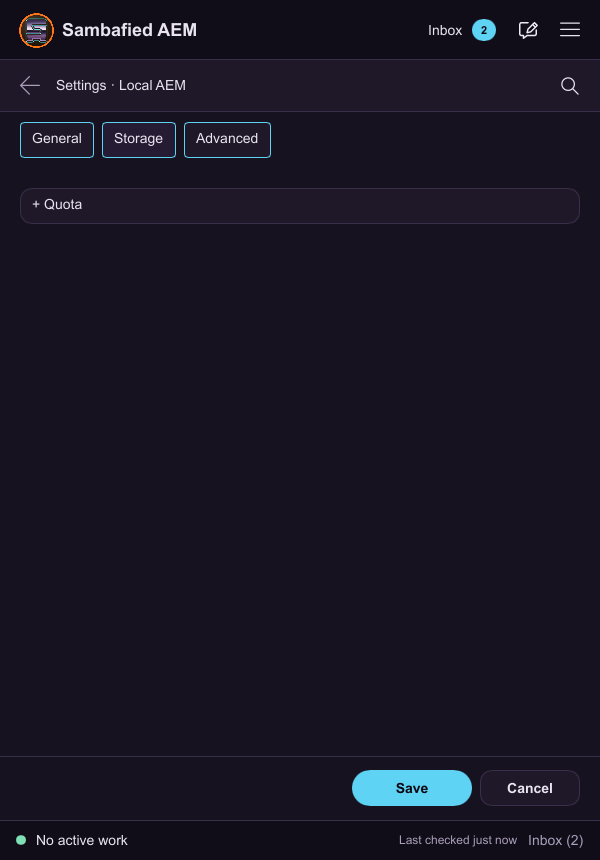
Illustrative sample. Storage preferences are the starting point for reviewing storage options.