Conflicts, discard and recovery
Guide home · Find a task Preserve local edits before resolving conflicts. Compare the local and server copies; timestamps and checkout badges alone do not establish which version should replace the other.
Keep recovery files and original connection details after a fault. Recovery should use the account and folder that own the work. Ask support before moving retained state, resetting credentials or discarding files to remove an error.
Discard local changes with recovery
Be online and close applications writing the file. A current server original and protected recovery copy are required.
- Select the local edit and choose Discard Changes.
- Check the asset and the server copy that will replace it.
- Review the recovery copy and confirmation.
- Confirm only if this is the saved copy you intend to replace.
Discard replaces the reviewed local edit. It does not delete the server asset, upload or check in.
Cancel to keep edits. If recovery cannot be secured or the server state is unknown, stop and contact support.
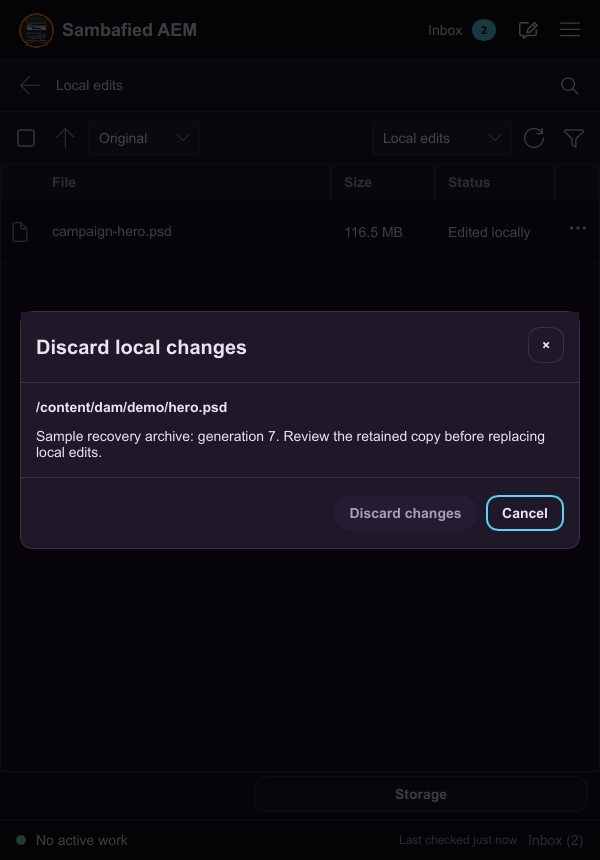
Illustrative sample. The discard confirmation identifies the original and the retained recovery copy.
Resolve a conflict or remote change
Keep the local file and server information for comparison.
- Open conflict details.
- Compare revisions, sizes and timestamps. Use Reveal local or Open in Web if available.
- Keep an independent copy if unsure.
- To use the server copy, review local replacement and recovery before confirming. Use Refresh separately for a clean local copy.
A lock icon or timestamp alone does not establish which copy should replace the other.
Cancel to preserve local work. Resolve an unknown upload result before attempting another overwrite.
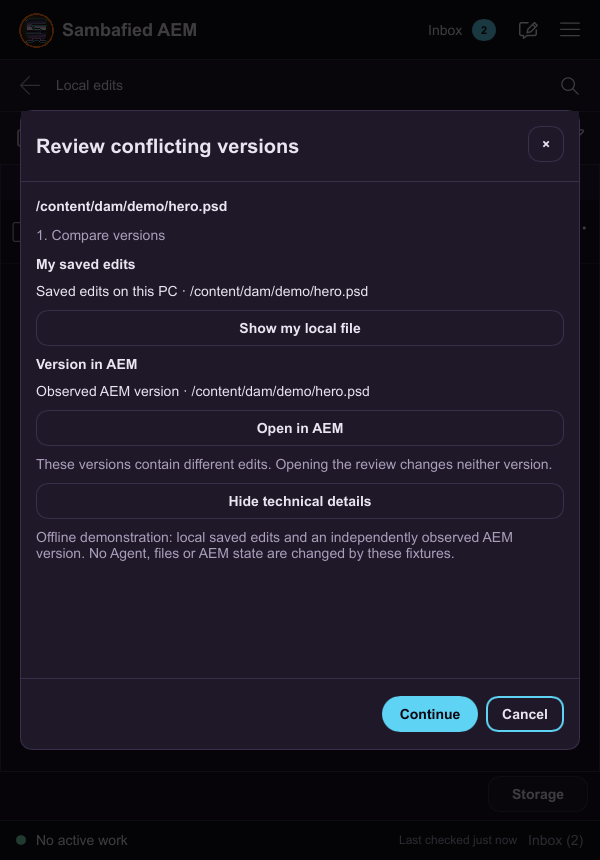
Illustrative sample. Controls may differ in your build; this image does not verify the complete task or its result.