Titles, metadata, folders and remote organization
Guide home · Find a task Display title, filename and server location are different properties. Copy creates a new asset; a collection refers to an existing one. Check the affected asset and destination before changing anything.
A folder metadata schema defines available fields. Assigning a schema does not necessarily change descendants. Inspect any partial result and preserve drafts when an update fails. Use Open in Web where desktop editing is unavailable and permitted by your administrator.
Change a display title
Have permission to change asset metadata.
- Choose Change Title.
- Inspect the current title and enter a new one.
- Review validation and save.
- Reopen details to check the result.
Changing a title does not rename or move the file.
Cancel to keep the title. If permissions or server changes prevent saving, keep the draft and refresh before trying again.
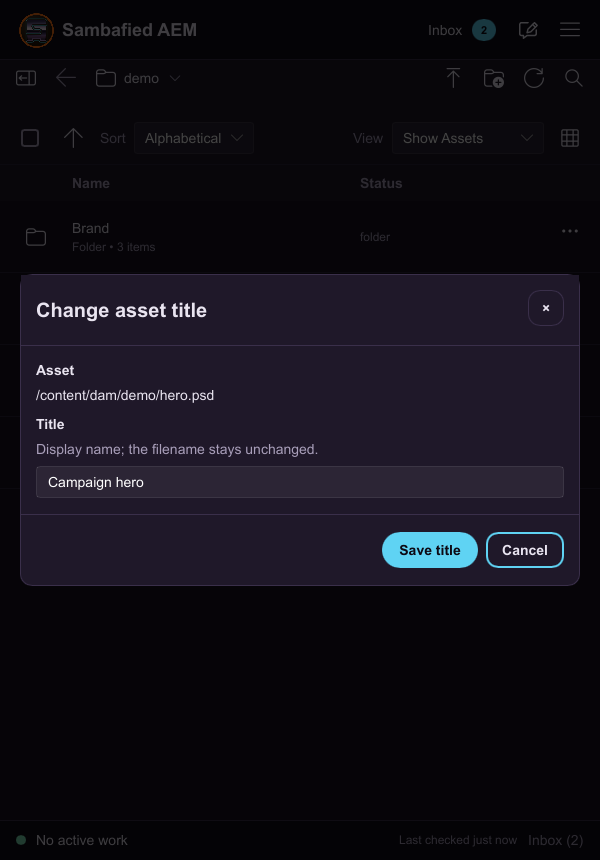
Illustrative sample. Controls may differ in your build; this image does not verify the complete task or its result.
Edit metadata
Metadata editing depends on the server and available form.
- Choose Edit metadata.
- Inspect required, multiple-value and read-only fields.
- Make changes and review validation before saving.
- Reopen details to check saved values.
Check the displayed result after submission.
Preserve your draft if the asset changed or access was denied. Use Open in Web if desktop editing is unavailable and your administrator permits it.
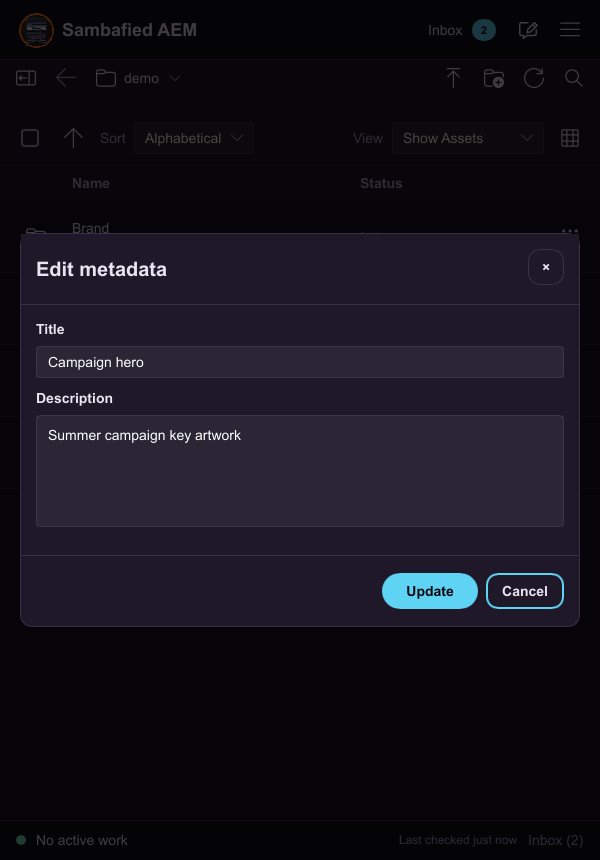
Illustrative sample. Controls may differ in your build; this image does not verify the complete task or its result.
Create a folder and inspect properties
Have permission to create a folder in the selected parent.
- Choose Create DAM folder.
- Enter its name and title; inspect the final name and optional metadata schema.
- Review and confirm creation.
- Open folder properties to inspect location and metadata.
Folder creation may succeed even if a later metadata step fails.
If the name exists, parent is missing or access is denied, correct that issue first. Keep a successfully created folder and repair metadata separately.
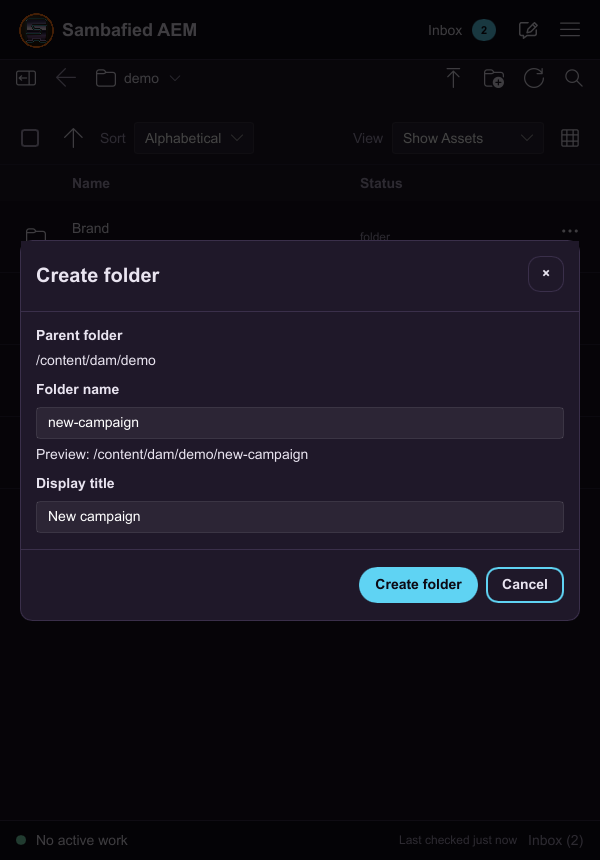
Illustrative sample. Controls may differ in your build; this image does not verify the complete task or its result.
Apply or remove a folder schema
A metadata schema defines folder fields. Have permission to change its assignment.
- Open the folder schema action, when available.
- Compare the current schema with the one you want to apply or remove.
- Review the affected folder and confirm.
- Reopen properties to inspect the result.
Changing a schema does not necessarily change descendants.
Cancel to retain the assignment. If assignment failed after folder creation, repair the existing folder rather than recreating it.
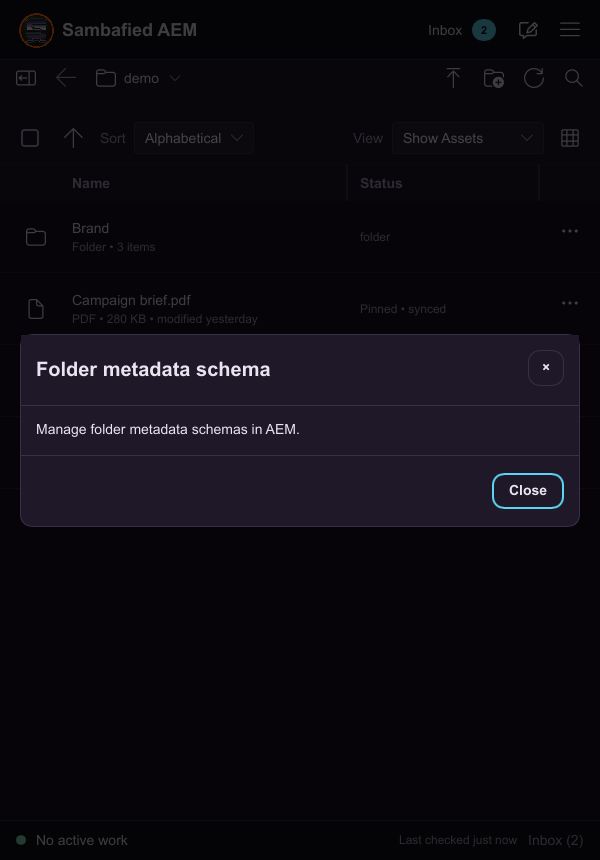
Illustrative sample. The folder schema view directs you to AEM for schema management.
Copy or duplicate an asset
Choose a supported destination on the same server connection.
- Choose Copy or Duplicate.
- Review destination and proposed name.
- Check which metadata, renditions, references and versions will be copied.
- Confirm and inspect the new asset.
The original remains. The copy is a separate asset with its own editing and access state.
Cancel to leave the source unchanged. If server copy is unavailable, export/import is a different procedure with different results.
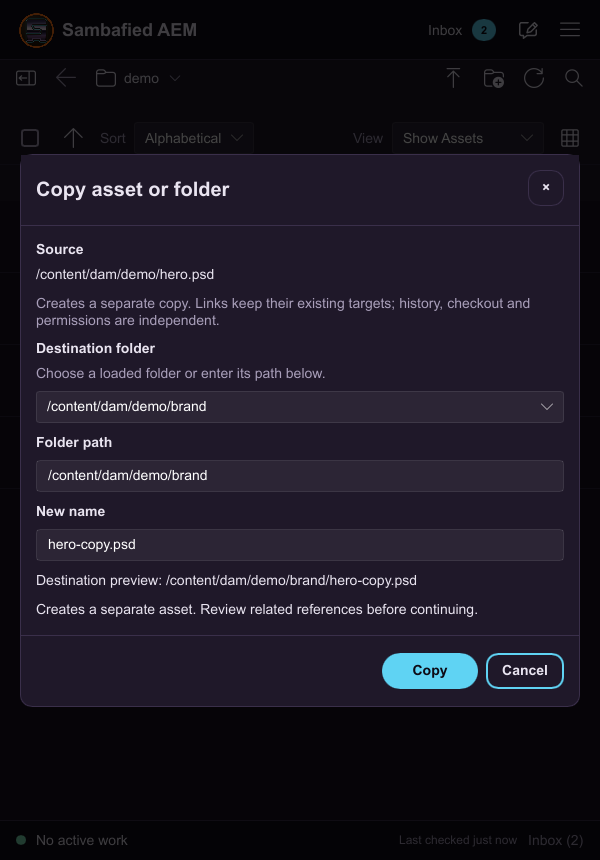
Illustrative sample. Controls may differ in your build; this image does not verify the complete task or its result.
Move or rename a filename
Moving and filename renaming are planned; a supported customer procedure is not available yet.
- Keep the original asset and local edits in place.
- If your administrator offers an approved AEM web procedure, check pending edits, references and destination permission first.
- After an approved server change, refresh the desktop view and check linked documents.
Changing a display title differs from renaming a filename.
Do not rename cache entries as a substitute. Keep a safe copy and contact support if references are affected.
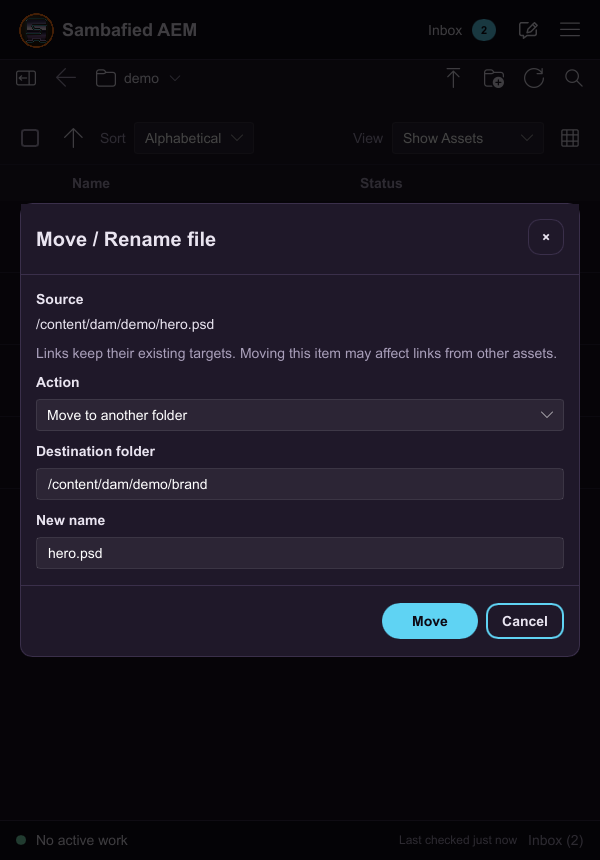
Illustrative sample. Controls may differ in your build; this image does not verify the complete task or its result.
Delete remote assets or folders
Remote deletion is planned; a supported customer procedure is not available yet.
- Review the asset or folder and preserve unuploaded work.
- Check descendants and references with your administrator.
- Use only an approved server deletion procedure, if available for your deployment.
Server deletion affects other users. It differs from clearing a local download or removing collection membership.
Cancel if scope or recovery is unclear. Do not delete work-folder files to attempt server deletion.
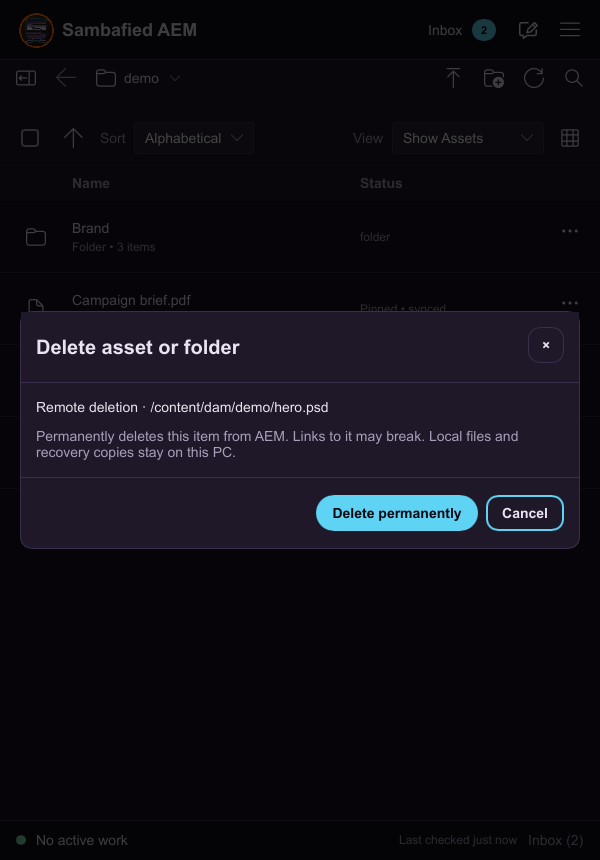
Illustrative sample. Controls may differ in your build; this image does not verify the complete task or its result.