Open, reveal, edit and check out
Guide home · Find a task Choose Open for viewing, Edit for making changes and Reveal to locate the file. Saving in a desktop application keeps work on this PC until you upload it. Checkout and check-in are separate server actions where supported.
Related-file downloads and drag-and-drop vary by build and application. Use the available Open or Upload File action when a drag gesture is unsupported.
Open and Open With
Have a Windows application associated with the file type.
- Select the asset and choose Open.
- Use Open With to choose another application if offered.
- Wait for any original download before opening the file.
Open uses the local original and does not automatically check the asset out.
If no application opens, check the Windows file association and download status. Use Edit when you intend to change the asset.
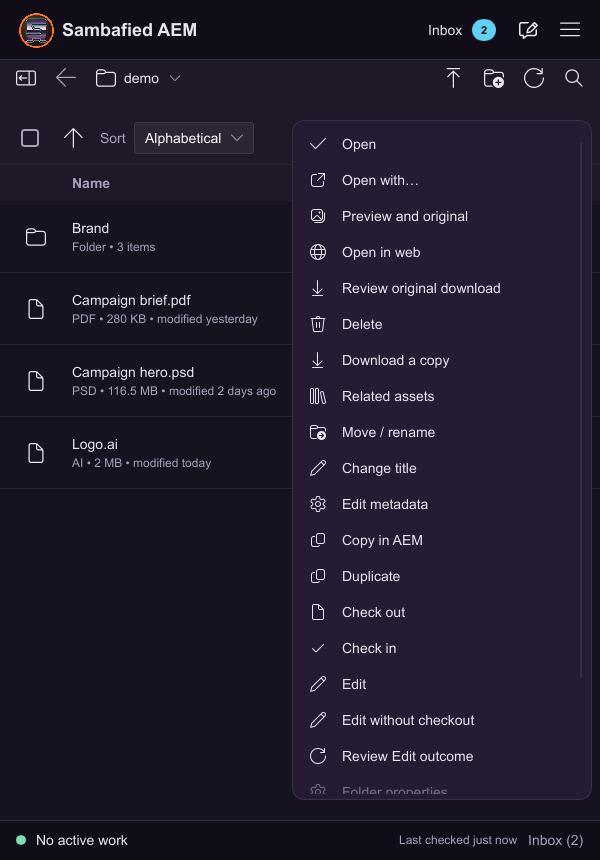
Illustrative sample. The selected asset menu shows Open and Open with.
Edit, save locally and publish deliberately
Have edit permission and check whether your server supports checkout.
- Select the asset and choose Edit.
- Review any checkout message and download the original if needed.
- Make changes in your desktop application and save locally.
- Return to Edited locally, review the saved copy and choose Upload Changes when ready.
Saving on this PC does not by itself upload changes. Check-in is separate where supported.
If another person changed the server copy or owns checkout, preserve your local file and compare the versions before resolving the conflict.
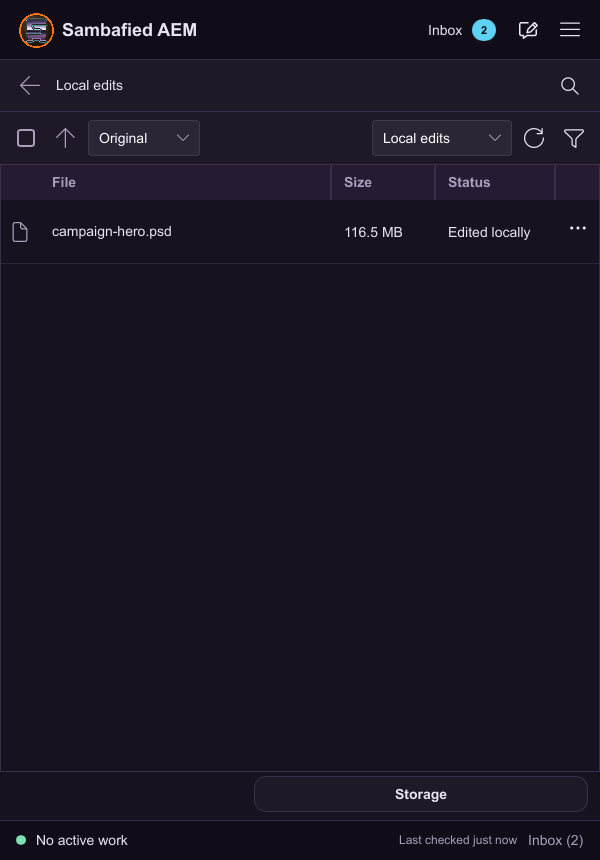
Illustrative sample. Select the edited file in Local edits to review what you saved.
Reveal the right folder
Select the asset or folder you want to locate.
- Choose Reveal or Show work folder.
- Check whether the destination is the work folder, selected asset, cache or an exported copy.
- Use the managed work-folder copy for editing and uploading changes.
An exported copy is independent of the managed asset.
If the destination is unavailable, inspect connection and download status. Do not move or delete cache files to repair it.
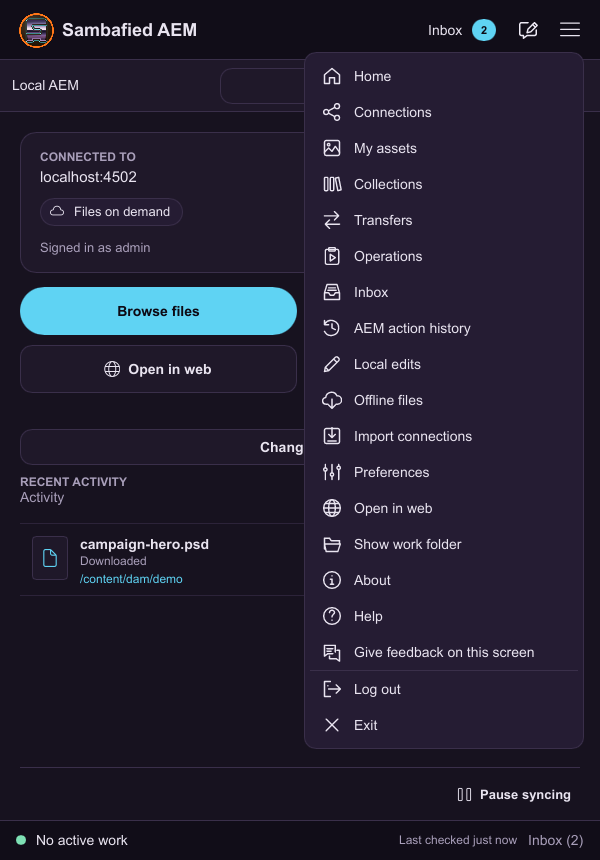
Illustrative sample. Show work folder opens the folder for the active connection.
Drag assets in or out
Drag-and-drop is still being checked across Windows and desktop applications. Use Open or Upload File when unavailable.
- For drag-out, download the original and select the asset.
- Drag to a supported destination and check whether it creates a copy or link.
- For drag-in, drop local files on the upload destination offered by the app.
- Review the target folder, filenames and collision choices before confirming.
A drag gesture must not bypass the upload review.
Cancel the review to stop an import. If a gesture fails, use the file picker rather than moving files into cache folders.
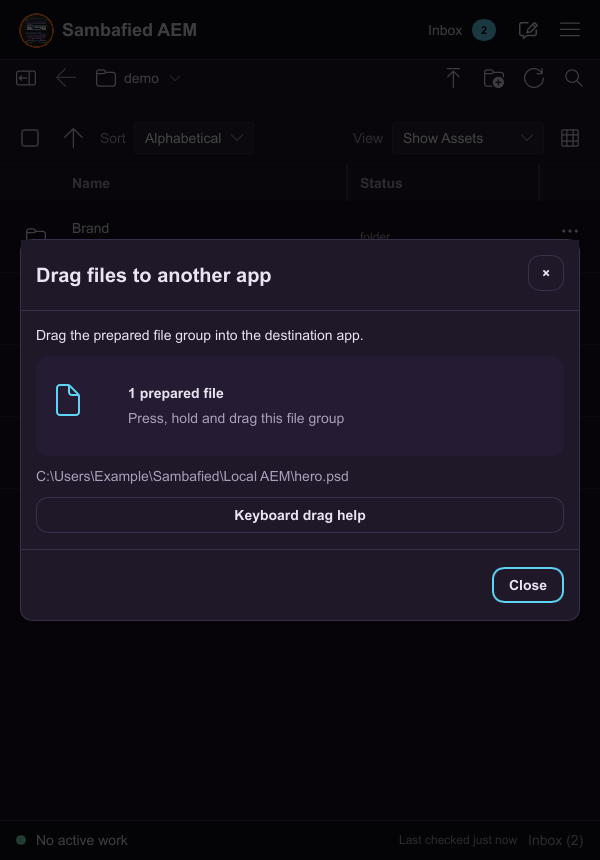
Illustrative sample. Prepare native drag presents the selected file before dragging.
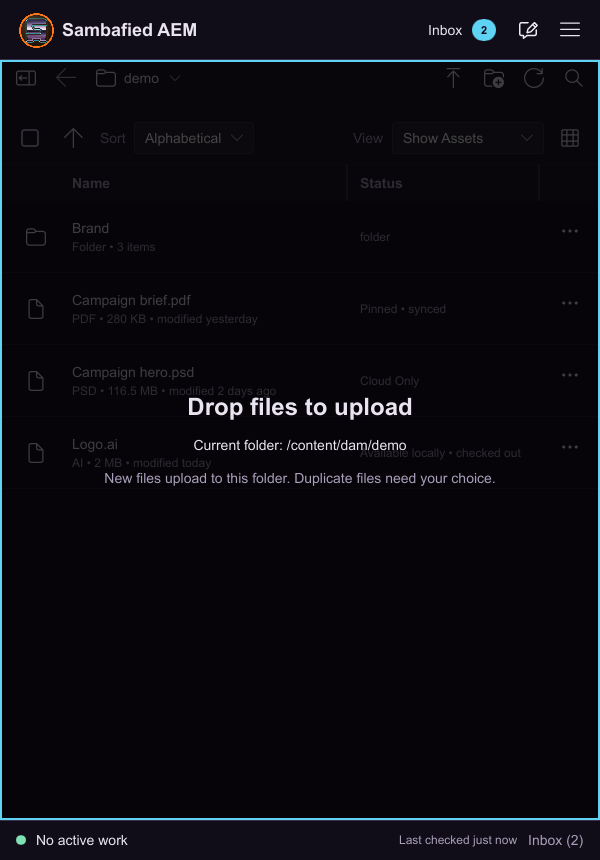
Illustrative sample. The asset view indicates where files can be dropped.
Check out or check in separately
Checkout and check-in depend on server support and permission.
- Inspect the asset checkout owner and status.
- Choose Check out to reserve it, if available.
- Upload saved changes separately when ready.
- Choose Check in and inspect the result.
Treat checkout as advisory in this preview. A badge does not guarantee exclusive editing or replace conflict checking.
If another person owns checkout or ownership changes, keep local work and ask your administrator. Upload does not necessarily check in.
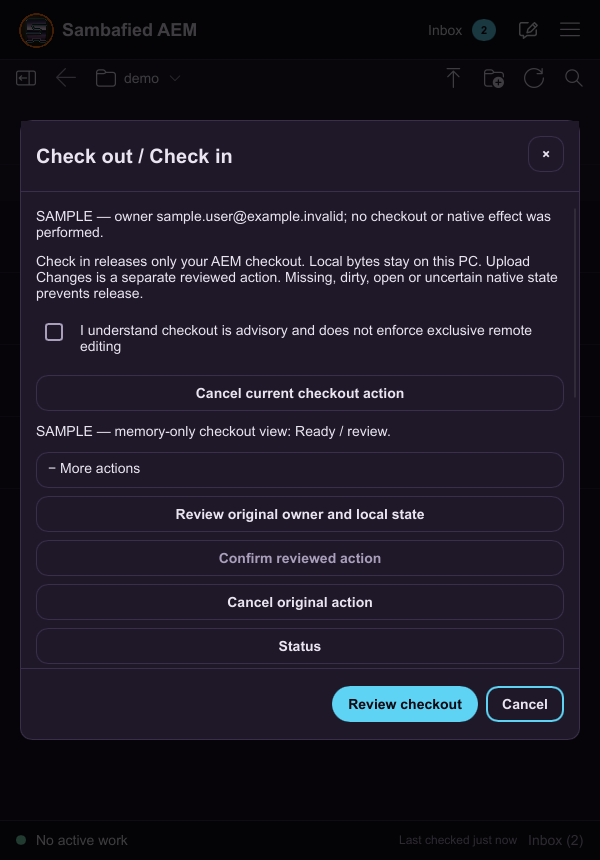
Illustrative sample. The checkout view shows ownership and local-state information.