Welcome to Sambafied AEM Desktop
Guide home · Find a task Sambafied is intended to connect AEM Assets with a Windows work folder. You can find assets, open originals in local applications and review saved changes before uploading them.
Start with one asset
- Read installation and availability.
- Create a named connection with details from your administrator.
- Browse or search for a file you can read.
- Open the original, then use Edit and Upload Changes if you intend to change it.
- Inspect Transfers for the result.
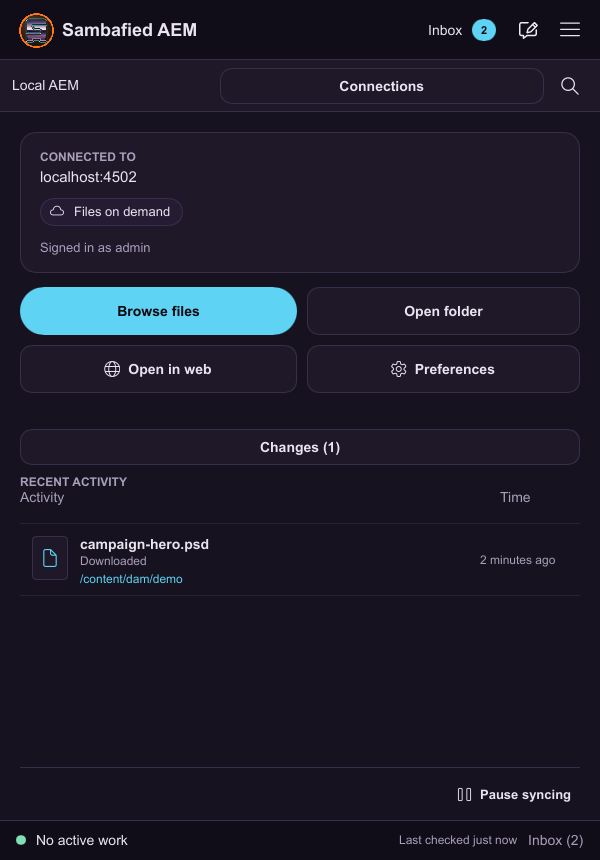
Illustrative sample. Home offers Browse files for the selected connection.
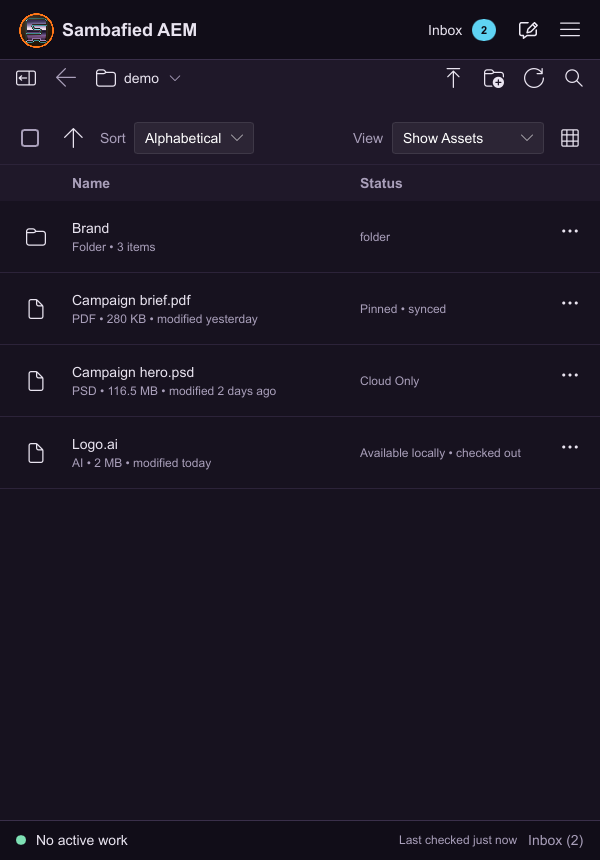
Illustrative sample. My assets shows the files and folders in that connection.
Understand local work
A preview image is not a downloaded original. Saving in a desktop application does not automatically mean the server copy changed. Upload completion, server processing and check-in can happen separately. Keep local edits until you have checked the result.
Demonstration mode
An offline demonstration uses sample data. It does not connect to AEM, upload files or demonstrate Windows work-folder integration. Its simulated tray panel is part of the demonstration window. Ask the responsible product contact for demonstration launch instructions.